Configuration Guide for Implementer/Administrator
- Sam Im (Deactivated)
- Christine Lenihan
- Brandon Bowersox-Johnson
This is a living document that continues to be updated as development continues. Please reach out if you have questions.
This is a step by step guide for the Implementer that explains what's needed to set up OpenLMIS and a step by step guide to complete the setup of OpenLMIS version 3 (In Progress - document updates for version 3.5 in parentheses below)
Introduction to OpenLMIS
What is OpenLMIS?
The OpenLMIS community believes in a world where all countries have the data they need to manage their health supply chains and lead to healthier communities. We are a community initiative and a software platform working to make this vision a reality.
The OpenLMIS software is an open source electronic logistics management information system (LMIS) purpose-built to manage health commodity supply chains. OpenLMIS is rooted in the "Common Requirements for Logistics Management Information Systems" using the Collaborative Requirements Development Methodology (CRDM). OpenLMIS supports a wide range of business process needed to manage complex (multi-program and multi-level) supply chain(s).
Additional Resources:
- A better world through OpenLMIS Video (3:00) :
- What is OpenLMIS? Video (20:18) :
What business processes does OpenLMIS support?
In accordance with the "Common Requirements for Logistics Management Information Systems" using the Collaborative Requirements Development Methodology (CRDM), the following business process are supported within OpenLMIS version 3.x:
- Requisition Business Process with the objective to ensure timely ordering of the right vaccine/drug/supply in the right quantity.
- In OpenLMIS, the features supporting this are found within the Requisition service and enabled by the reference data configurations of products (known as orderables), min, max and targets.
- Receiving Business Process with the objective to receive verified quantity and quality of goods into store and determine need for remedial action when necessary.
- In OpenLMIS, the features supporting this are found within the Fulfillment service, specifically the Manage the Proof of Delivery portion.
- Storage Business Process with the objective to maintain chain of custody and appropriate environmental conditions for stock and inventory.
- In OpenLMIS, the features supporting this are found within the Stock Management service and supported by the CCE Management service.
- Dispatch Business Process with the objective to identify and prepare accurate quantities of items packed correctly from store needed for transport by lower level is partially supported.
- In OpenLMIS, the features supporting this are found within the Fulfillment service, specifically the Fulfill Orders portion. At the moment we do not support the process of planning a distribution as defined by the CRDM.
- Transport Business Process with the objective to manage the movement of supplies between locations is partially supported.
- In OpenLMIS, the features supporting this are found within the Fulfillment service and are limited to providing the details of the shipment and a notification when a shipment is created.
- Dispense Business Process, both the generic and administer vaccine, with the objective to dispense effective treatment in the correct quantity and quality to the correct client with appropriate information for proper use.
- In OpenLMIS, the features supporting this are found within third-party applications, mainly mobile systems like OpenSRP, and are interoperable with OpenLMIS.
- Forecasting Business Process with the objective to provide accurate estimation of goods and material needs for a specified time period.
- In OpenLMIS, the features supporting this are found within the Reference Data service and defined by implementers. OpenLMIS supports consumption based forecasting, minimum and maximum policies and implementer defined targets (such as target populations, etc.).
- Capacity Planning Business Process is not yet supported.
- Distribution Planning Business Process in not yet supported.
- Contracts and Grants Management Business Process is not yet supported.
- Procurement Business Process is not yet supported.
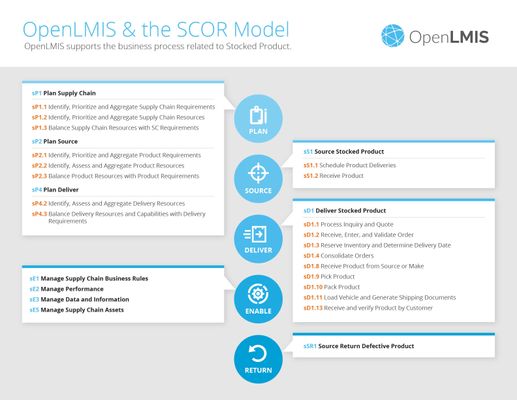
In accordance with the APICS Supply Chain Operations Reference Model (SCOR) framework, the following business processes related to Stocked Product are supported within OpenLMIS version 3.x:
What features are included in OpenLMIS?
New features are added continuously with each release. For details on what features were added when, it is best to review the Functional Documentation page in combination with the release notes.
Understand the replenishment process and terminology
OpenLMIS supports "pull" (requisition-based replenishment). This is configurable on a per-program basis. For requisition-based replenishment, facilities are expected to submit requisitions for each program, on a cyclical basis, based on which schedule their "pull" program operates on.
 The entire list of terms used in this document are located here (Glossary/Definitions) for reference as you are reviewing the Configuration Guide.
Replenishment Process and Requisition Workflow in OpenLMIS
The following is an introduction to some of the basic concepts and objects used in OpenLMIS. The words that are linked below refer to specific objects that must be created in OpenLMIS as part of setting up the system (e.g., Configuration Guide for Implementer/Administrator#Program, Configuration Guide for Implementer/Administrator#Orderables). When setting up OpenLMIS for a production deployment, a system administrator will need to create these objects in the system, in addition to several other types of objects described below that are intrinsic to OpenLMIS's operation.
OpenLMIS supports customizable Configuration Guide for Implementer/Administrator#Geographic Hierarchy for Geographic Zones or administrative areas. This includes customization of the number of Geographic Levels in the hierarchy, as well as the labels for each level in their hierarchy (for example: Country | Province | Region | District or alternatively as: Country | State | County ).
OpenLMIS supports Facilities that function as Service Delivery Points, and facilities that function as warehouses or "supply depots" to replenish other facilities. A single facility can be an SDP or warehouse, or both an SDP and a warehouse. Facilities can be further classified by type (e.g., dispensary, health center, regional hospital, teaching hospital). OpenLMIS also supports custom Facility Types which can be used to segment product availability, and for reporting purposes.
OpenLMIS supports one or more Programs, all of which are customizable. For example, a healthcare network could operate a general ART program or it could operate distinct ART programs, such as a Pediatrics ART program and a separate Adult ART program. Hypothetically, these distinct Pediatrics and Adult ART programs could be differentiated by the products available in each program.
OpenLMIS supports grouping Configuration Guide for Implementer/Administrator#Orderables or Products by category (e.g., antibiotics, analgesics, etc.). OpenLMIS uses the terms Products and Orderables interchangeably as shown in more detail in the Orderables section below. The choices for Product Categories are customizable. OpenLMIS allows segmenting products on a per-program basis (e.g., Depoprevara would be offered in a Reproductive Health program, but not in a Malaria program). Individual products can be assigned to one or more programs (e.g., Doxycycline could be used in both the Essential Medicines and Malaria programs). Products are typically further segmented by facility type (e.g., experimental ARVs could be available to teaching hospitals, whereas only fully qualified ARVs would be available at village dispensaries, since there is less concern about risks from undocumented side effects. Note that medical supplies are commonly referred to by several different terms, including orderables and products.
OpenLMIS supports customizable Processing Schedules that define the Processing Periods or calendar intervals at which facilities are replenished. Each schedule is typically divided into uniform periods, such as months or quarters. OpenLMIS supports having multiple schedules tailored to how each program and/or geographic region is managed. For example, there could be three different quarterly schedules, each staggered to start on a different month of a calendar quarter. When performing replenishment calculations, OpenLMIS automatically takes into account the length of each replenishment interval and calculates order quantities accordingly. This is configurable on a per-program basis. For requisition-based replenishment, facilities are expected to submit requisitions for each program, on a cyclical basis, based on which schedule their "pull" program operates on.
OpenLMIS uses a mechanism called Configuration Guide for Implementer/Administrator#Requisition Group to manage the replenishment process. A requisition group is a "container" for gathering together a group of facilities that run the same programs, on the same schedule, rely on the same supervisory hierarchy for review and approval of their requisitions, and rely on the same warehouse to fill their approved orders. The requisition group provides a convenient mechanism for managing the schedule and workflow for all these ART clinics, on a group basis.
Now that you understand the replenishment requisition and fulfillment processes, the next step will be to gather and prepare the reference data to complete the OpenLMIS setup.
Understand key roles in setting up OpenLMIS
Step 1: Prepare
Gathering the Required Data
There are several sets of data that the team must gather, in preparation for setting up OpenLMIS. These will include (in the recommended order of loading/setting them up):
- a list of all Programs and their configuration that will be supported in your health care system
- your preferred classification scheme for facilities (FacilityTypes and FacilityOperators)
- a list of all geographic zones, plus a determination of how your geographic hierarchy will be structured (GeographicLevels and GeographicZones)
- a list of all Facilities that will be part of your health care network, including service delivery points and supply depots or warehouses; each facility includes a list of programs that are supported at that facility.
- a list of adjustment reasons available (for modifying the stock levels in requisitions and during stock management) and their assignemnts to specific programs and facility types (StockAdjustmentReasons, ValidReasons)
- a list of valid source assignments and valid destinations for shipments, proofs of delivery, and stock issuing/receiving (ValidSources and ValidDestinations)
- a list of categories to group the orderables (OrderableDisplayCategories)
- a list of all Orderables and Trade Items that will be available to health care facilities
- your classification scheme for Commodity Types
- your determination for how orderables and trade items will be segmented by program, as well as by facility type (ProgramOrderables and FacilityTypeApprovedProducts)
- your determination of the schedule(s) on which facilities will get replenished (ProcessingSchedules and ProcessingPeriods)
- your determination of how requisitions will be routed for review and approval and how many review steps will be required (SupervisoryNodes)
- your determination of how facilities will be grouped, to get replenished on the same schedule segmented by program (RequisitionGroups + RequisitionGroupProgramSchedules)
- your determination of what facilities will supply for requisitions in the given program and supervisory node (SupplyLines)
- a list of all users and their roles that will be working with OpenLMIS to support the replenishment process (Users, Roles)
Many of these sets of data may already be contained in legacy systems, stand-alone databases, or spreadsheets. The configuration steps listed below include a list of attributes or fields that must be assembled for each of the objects that you will create in OpenLMIS, e.g. facilities or orderables, and should be used to your gathering of the data. OpenLMIS has a tool that can help implementers in loading the above data: https://github.com/OpenLMIS/openlmis-refdata-seed
Initial Preparation of OpenLMIS system
Setting up an Administrator
The default administrator account that is initialized when OpenLMIS is first installed is username = Administrator password = password.
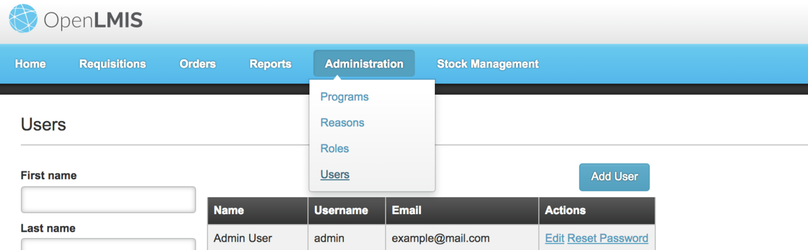
These login credentials are in the public domain and are maintained here, so the first step is to create a new user account with administrator rights, and then disable this default account. Log in with above credentials, then from the main menu, go to: Administration, Users.
Click on the [Add User] button, then enter the basic information for the new user account as well as creating a password for the account by selected the Reset Password link below.
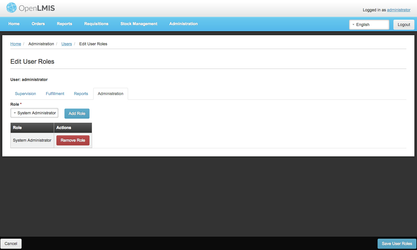
Now the new user account needs administration rights. To set this up, go to Administration, Search for the User: Administrator, then select Edit. It will bring you to the Edit User Roles screen where you can assign the Administration type role to the user as shown below and Save User Roles. Once the user has been assigned the Administration role the OpenLMIS set up can begin.
Additional considerations before setting up OpenLMIS
OpenLMIS relies on three different methods to fully configure the system:
- Configuring various objects in OpenLMIS, by means of various administrative user screens
- SQL statements, executed by a database administrator that insert data into the system
- Importing CSV files, as bulk uploads of various objects
Each of these methods will be used at different stages of the overall setup process to fully configure the system. Working with administrative user screens is required at various points in the setup process, starting with setting up an OpenLMIS administrator account (as shown above). Administrative user screens will also be used in the latter stages of the setup process, for example, to define the schedule(s) that your replenishment cycles will operate on, to configure requisition forms, create additional user roles, and assign new users to specific roles.
First, you will learn more about each set of data within the system. Then you will be shown how to set it up, and given an example to reference as you are completing this process. Now let's begin the process of setting up OpenLMIS.
Google translations affect the calculations. The translation plugin changes the markup causing the calculated quantities to be incorrect and breaking their update. We recommend not to use Google Translate but rather OpenLMIS built-in translations.
Step 2: Set up OpenLMIS
In this step you will learn about setting up OpenLMIS. This step involves creating various attributes and associating reference data. The setup must be followed in this order to ensure data exists for the next attribute. This setup process includes the following:
- Setup Basic Attributes that are used to characterize Products and Facilities
- Setup Orderables, TradeItems, CommodityTypes
- Setup Programs, Processing Schedules, and Periods
- Setup Geographic Hierarchy, Levels, and Zones
- Setup Facilities and Facility Types
- Setup Facility Type Approved Products
- Setup Associated Facilities and Programs
- Setup Ideal Stock Amounts
- Setup Stock Management including Adjustment Reasons
- Setup Supervisory Nodes, Requisition Groups, Supply Lines
- Setup User, Roles, and Rights
- Setup Facility FTP
- Setup Requisition & Report Template by program and facility type
- Setup Order File
- Setup CCE Catalog
Setup Basic Attributes that are used to characterize Products and Facilities
Product Categories
Product Categories are used to sort products by a logical order within the R&R form. These categories should make sense to any user that views R&R forms so they can associate the section they are working in as they are completing or reviewing the forms.
Setup Product Categories
Example:
- The Category Code is the shorthand name that is not visible to users. The code must be unique and is case-sensitive.
- The Category Name is the description of the Product Category that is displayed and visible to all users. The name must make sense to the general users and have enough detail so they can identify which section of the R&R form they are viewing. When transitioning from paper requisitions to OpenLMIS, it may be helpful to categorize products the same way as they appear on the paper form.
- The Display Order determines where on the R&R form the category and associated products are listed.
Category Code (required) | Category Name (required) | Display Order (required) |
|---|---|---|
| FP | Family Planning | 10 |
| hiv | HIV Control Program Medicines | 14 |
Dosage Units
Dosage Units are the different units in which individual doses or items that are given to a patient can be quantified.
Setup Dosage Units
Example:
- The Dosage Unit Code should correspond with the dosage units for each product.
- The Display Order determines the order in which the available dosage units are presented to a user when creating a new product or editing an existing product.
| Dosage Unit Code (required) | Display Order (required) |
|---|---|
| mg | 1 |
| ml | 2 |
Setup Orderables, TradeItems, CommodityTypes
Understanding Orderables, TradeItems, and CommodityTypes
Orderables
In OpenLMIS 3.0 we represent medical commodities with the Orderable domain object, called "Product" in previous versions. The term "Product" is no longer used in OpenLMIS because it means many different things to different stakeholders. The term Orderable emphasizes the abstract notion of some commodity that may be ordered.
An Orderable represents any item that may be ordered. For example, an item may be ordered on a Requisition form by a storeroom manager in a medical facility. An Orderable in OpenLMIS 3.0 must be connected to either a TradeItem (a specific item by a manufacturer/brand owner) or to a CommodityType (one category of medicines or commodities). Each of those is described further below.
An Orderable is identified uniquely within an implementation by its Product Code. A Product Code is an implementation specific identifier that can be used to assist people in filling out paper forms, as well as, external systems so that each system references the same commodity code to support accurate ordering. Orderable's may also answer a number of questions that typically arise when one needs to order them:
- how many patients may I dispense to if I order one?
- what Programs may I order this through? and what does that Program stipulate about ordering this?
- what other commodities may also be used to fulfill the given Orderable if it is out of stock?
Trade Items
A TradeItem in OpenLMIS follows the GS1 concept and is, as the name implies, an item meant for trade. These are most often items that have a specific manufacturer or brand owner and are typically identified and defined by that manufacturer or brand owner outside of OpenLMIS. A TradeItem can have an associated GS1 GTIN (Global Trade Item Number) if GTINs are being used. OpenLMIS can provide basic GTIN check digit validation.
Every Orderable can be connected to one TradeItem (or, alternatively, it could be connected to a CommodityType, described below). We refer to this as a TradeItem's Orderable. With this kind of Orderable, an end-user is ordering a specific, real item. A TradeItem should only have at most one Orderable in OpenLMIS. That gives it a single product code by which it is known in that entire OpenLMIS implementation. A TradeItem Orderable can have different settings that vary for different Programs; more on Programs below.
When a TradeItem's Orderable appears on an order form (a Requisition form), it means the end-user is ordering a specific (likely manufactured) item. For example, an end-user may order 10 units of an Orderable, and its TradeItem may be used to fulfill that order. TradeItems may have a GTIN and are the only concept that may have Lots/Batches or serial numbers. Tracking expiration dates or handling product recalls are made possible by tracking these Trade Item attributes end-to-end through the supply chain. Furthermore, each location where the stock of that item is ordered, warehoused, delivered and stored can be associated with a GS1 GLN (Global Location Number).
Commodity Types
CommodityTypes represent classifications of commodities. These may be hierarchical or may be flat. Widely-used examples include UNSPSC and GPC. Multiple classification systems can be in use at the same time in a single OpenLMIS implementation. The ability to handle hierarchy and branching follows GS1 best practice and allows an implementation to mix and match existing classification systems in practice. For these reasons, each TradeItem may be tied to one CommodityType in each classification system (e.g., one in UNSPSC and one in GPC).
A Orderable can be constructed from one Commodity Type (or, alternatively, it could be connected to a TradeItem, as above). We refer to this as CommodityType's Orderable. With this kind of Orderable, an end-user is ordering a classification of commodities. A CommodityType's Orderable is the more typical kind used in OpenLMIS. That is typical because often an end-user does not need to order a specific manufacturer's Trade Item (Advil Extra Strength 100mg), but instead wants to order a classification (Ibuprofen 100mg). Later, when a requisition becomes an actual shipment and delivery, some tangible item—a real TradeItem like Advil Extra Strength—can fulfill that order. That is allowed as long as the TradeItem is compatible with the CommodityType (see more about Fulfillment below).
Programs
OpenLMIS can handle multiple Programs operating at once. Each Program has a specific set of Orderables, a complex configuration including Requisition Form settings and Program-specific user permissions, and a network of Facilities that are participating in the Program. For example, a Malaria program may be operating in a country in parallel with a Family Planning program. The Malaria and Family Planning programs may have their own sets of Orderables, users, warehouses, clinic facilities, and configurations.
Sometimes TradeItems and Orderables may overlap between Programs. A specific medicine may be provided by two different programs backed by two different funders and/or supply chains. Even thought it is the same TradeItem, it may have a different configuration in each program. Perhaps a different cost to account for or a different hierarchy of approvals, for example.
Display Categories
An OrderableDisplayCategory provides a name and display order for a given Orderable applied to a Program. This allows Orderable items to be grouped into categories within the OpenLMIS user interface, such as on a requisition order form. This grouping does not need to match any of the CommodityTypes categories or any official classifications such as UNSPSC. OrderableDisplayCategories provide complete freedom to configure whatever groupings make sense for any given Program. In most cases though it's assumed that an implementation following a well-sourced classification system could simply use that Classification System for its OrderableDisplayCategories.
Example Scenario: Malaria
In this scenario, we consider the Malaria drug Mefloquine. Mefloquine is a CommodityType in OpenLMIS. It is categorized as follows within the UNSPSC classification system:
Drugs and Pharmaceutical Products (51100000)
→ Antiprotozoals (51101900)
→ Mefloquine (51101902)
UNSPSC is a globally-used classification system; see more about GS1 Product Categorization. In OpenLMIS, the UNSPSC hierarchy is represented as CommodityTypes that capture all the pieces of that hierarchy in use.
Altimef and Confal are two manufacturer brand names for Mefloquine (source). These are represented as two distinct TradeItems in OpenLMIS, both which list themselves as in the Mefloquine CommodityType in the UNSPSC classification system. Each one may have a distinct GS1 GTIN. As these specific trade items are shipped, delivered, stocked and utilized, the Lots/Batches, serial numbers and GLNs can be used to track where specific items are located in the supply chain and at service delivery points (like a specific health clinic).
Orderable items are set up in OpenLMIS to represent the ability to order these drugs. In this scenario, 4 different Orderable records would be established as follows:
- 2 TradeItem Orderable records, one tied to TradeItem Altimef and the other tied to TradeItem Confal.
- 2 CommodityType Orderable records, both tied to the Mefloquine CommodityType, but one with a Dispensable that matches Altimef and the other with a Dispensable that matches Confal.
The Orderable records would include their OpenLMIS product code, the Dispensable details, the number of dispensing units in each pack, etc. We'll say that Altimef comes in individual pills of 100mg, and Confal comes in strips of 2 pills of 25mg. In the future, many of these attributes could be pulled directly from the TradeItem information through a GS1 GDSN using the respective GTINs.
The CommodityType Orderables would likely be used on a requisition form to allow users to order Mefloquine with each kind of dispensing unit. Later in the supply chain when a specific Trade Item is shipped and delivered, the Altimef and Confal TradeItem records would be connected. This would allow the connection to additional GS1 data such as Lots/Batches and more.
How Items Fulfill for Orders
An Orderable item in OpenLMIS may be associated with a CommodityType (like UNSPSC Mefloquine) or may be associated with a TradeItem (like Altimef). When an order is placed, or when stock is managed, specific items may fulfill for that order.
To create a fulfillable relationship between Altimef and Confal with Mefloquine we would need the connections described in the scenario above. Namely:
- Specific TradeItems (like Altimef and Confal) associated with a CommodityType (like UNSPSC Mefloquine).
- TradeItem Orderables for each TradeItem.
- CommodityType Orderables, one for each different Dispensing unit to match the TradeItems.
Specifically, here are the conditions under which OpenLMIS allows fulfillment:
- A TradeItem may fulfill for a CommodityType if:
- the TradeItem is classified by the CommodityType.
- AND the CommodityType has an Orderable which has an equivalent Dispensible as the Orderable which the TradeItem has.
That setup allows orders to be placed for a CommodityType but later fulfilled by a specific TradeItem.
Basic Example: Same Medicine from Different Manufacturers
In some situations, a medical commodity is made by two or more manufacturers, each with the same dispensing units. For example, Ibuprofen is a widely-used pain reliever available in 200mg tablets. In the United States, these 200mg tablets are available under many brand names such as Advil and Motrin. The dispensing units are identical, and a facility that orders Ibuprofen might not care which brand name they receive.
In OpenLMIS, this scenario would be addressed by using a CommodityType Orderable for Ibuprofen. Each of the manufacturers' products would be entered as its own Trade Item record (with its own GTIN it may be sourced from a GDSN provider) that each have their own Orderable. All these records would have matching Dispensing Unit information from their Orderable. This would allow facilities to order Ibuprofen and allow the logistics staff to fulfill that order with either Advil or Motrin.
A storeroom manager at a facility will see a list of Orderable items on their requisition form.
| Orderables |
|---|
Ibuprofen Commodity Type Orderable
|
This Commodity Type defines the classification system:
| Commodity Types |
|---|
Ibuprofen
|
Next, a warehouse clerk will fulfill the order by identifying the Trade Items including GTINs, Lot information, and quantities to ship. This may be done by identifying all the trade items in stock which list themselves as Commodity Type Ibuprofen (UNSPSC 5138409).
| Trade Items |
|---|
Advil
|
Motrin
|
Finally, a central logistician can run a report on the commodity types to understand consumption levels. In addition, if a certain Trade Item is recalled, a central logistician can run a report to identify which Lots of recalled Trade Items were shipped to which facilities.
Whether to Requisition Based on Trade Items or Commodity Types
In OpenLMIS, either a specific Trade Item or a broad Commodity Type can be configured as an Orderable item to appear on a Requisition form.
There are pros and cons for each:
| Pros | Cons | |
|---|---|---|
| Commodity Types | Allows staff to order medicines without knowing which specific Trade Item will be provided. This allows fulfillment staff the most flexibility to fulfill an order with the most appropriate Trade Items based on availability, pack sizes, and shipping considerations. | Provides less visibility at ordering time into the different pack sizes or different product costs. |
| Trade Items | This means that a product code for each Trade Item allows staff at authorized facilities to specifically order that specific Trade Item. Allows staff to see and choose manufacturer-specific information while placing an order, such as pack sizes or brand-specific costs. | Provides less flexibility during fulfillment to substitute one Trade Item for another*. Is more burdensome to configure for large implementations. |
*Having one Trade Item fulfill for the other is not currently supported in v3.0. In the future we plan to support this; see "How one Trade Item fulfills for another" section below.
Regardless of which configuration you are using, OpenLMIS can still contain Trade Item records (with GTINs) and Lot information that can be tracked during Fulfillment. In other words, even if you choose to Requisition based on Commodity Types, during the Fulfillment process the exact Trade Items that are shipped can be tracked, ideally with GS1 identifiers.
Advanced Example: Same Medicine with Different Pack Size
A different situation is when the same medicine in the same dispensing units comes from different manufacturers with different package sizes. An example of this is Quinine Sulphate, used to treat malaria. The dispensing unit given to a patient is a 300mg capsule. This drug is made by two manufacturers, Elys Chemical Industries Ltd. in Kenya and Actavis in the U.K. Actavis has a GTIN for their trade item (5012617009999) while Elys does not.
Both trade items have the same Dispensable, a 300mg capsule. However, Actavis distributes their product in packs of 100 capsules, while Elys provides packs of 1,000 capsules.
This could be handled in OpenLMIS in multiple ways, each with pros and cons for how orders can be fulfilled:
| Configuration | Explanation | Pros | Cons |
|---|---|---|---|
Requisition based on 2 Trade Item Orderables. | OpenLMIS can be configured with two TradeItem Orderables for Actavis and Elys. Two product codes, one for Actavis and another for Elys, can allow staff to specifically order one or the other. They could see pack size and price differences tied to information from the manufacturers when ordering. | (see "Whether to Requisition Based on Trade Items or Commodity Types" section above) | (see same) In addition, providing multiple choices for staff can make the ordering form longer and require more thought to fill out the form. |
Requisition based on 1 CommodityType Orderable. | OpenLMIS can be configured with one CommodityType Orderable for Quinine Sulphate. The Pack Size information in that CommodityType Orderable could be configured as 100 or 1000, or even 500 (to split the difference). | When ordering, staff will not know the exact pack sizes that would later be shipped. They can specify a quantity to order (in dispensing units) but cannot pick between packs of 100 or 1000. This may be simpler for staff and streamline the ordering process. | When ordering, staff cannot differentiate between the different pack sizes and the expected cost difference between the package sizes. One-size fits all, but few perfectly. |
Requisition based on 2 CommodityType Orderables. | OpenLMIS can be configured with two CommodityType Orderables for Quinine Sulphate with pack sizes of 100 and 1,000, respectively. This would provide two different product codes that staff could choose to order. They could choose either packs of 100 or packs of 1,000. | By using a CommodityType Orderable, there is still an opportunity for different specific TradeItems to be substituted during the fulfillment process. If a facility orders 10 packs of 100, the fulfillment staff might choose to ship 1 pack of 1000 (corresponding to Elys). Another benefit is that each item can have different permissions on which facilities are approved to order it and could show different prices that apply for each. | Providing multiple choices for staff can make the ordering form longer and require more thought to fill out the form. |
In summary, the commodity model is designed to allow orders for broad Commodity Types to be fulfilled by specific Trade Items, when the Dispensable information is compatible. As an implementation chooses how to configure OpenLMIS, they should consider all the steps in the supply chain to decide whether to use CommodityType Orderables or TradeItem Orderables.
How One TradeItems Fulfills for Another
In addition, one TradeItem may fulfill for other TradeItems when the dispensing units and dosage information is compatible. In the future this may be supported in cases where a GS1 EDI Item Data Notification message is received. For this reason, the current design (shown in the diagram below) includes a method on TradeItems called canFulfill(Orderable).
Packaging in OpenLMIS and GS1
The term "packaging" refers to the levels of containers, such as blister cells, cartons, cases and pallets, that may be used for a medical commodity. In GS1 and in OpenLMIS, each level can be a different Trade Item and can be tracked with a different GTIN. The following illustration shows an example of levels of packaging:

(Source: GS1 AIDC Healthcare Implementation Guideline release 3.0.1, July 2015, page 18, figure 3-13)
In OpenLMIS, one TradeItem can represent any one of these levels of packaging. OpenLMIS could be populated with five (5) TradeItems and GTINs for each level of packaging shown in the illustration above, from a pallet in the warehouse to one pill in the blister cell dispensed to a patient.
OpenLMIS is primarily concerned with Dispensable Units of a medical commodity. As discussed in the sections above, an Orderable item in OpenLMIS might be based on a specific TradeItem (with its unique GTIN) or might be based on a CommodityType. Regardless, any Orderable item in OpenLMIS must have Dispensing Unit information. This is important for OpenLMIS to consistently allow counting (inventory), ordering, forecasting, shipping and receiving of medical commodities.
The connections between the levels of packaging originate with the manufacturer and ideally will come directly from the GDSN network. Data from a GDSN provider may include XML data that provides additional attributes that connect one TradeItem to different levels of packaging. For example, a GTIN for a case of the product might have attributes that specify that the case contains 50 boxes.
Vaccine Vials and Doses
Similarly, this mechanism can be used in OpenLMIS to support vaccine vials. Vials usually contain multiple doses (10, 20, or otherwise). Because vials are only opened at a Service Delivery Point (a health facility that serves patients), most of the ordering, stock inventory and shipping happens with vials rather than dispensing units or doses. In OpenLMIS, the vial can be configured as the Orderable unit. The data for that Orderable will tell us about how many dispensing units the vial contains. This is now stored in the "net content" field, previously known as "pack size".
What Packaging Support is in 3.0?
In OpenLMIS 3.0, the commodity model is able to store all the TradeItems and their GTINs from multiple levels of packaging. However, OpenLMIS 3.0 does not include functionality to automatically query a GDSN provider, store the XML attributes, or use those attributes for business logic or computations.
The current model anticipates that future releases of OpenLMIS can grow in that direction. This would allow more automated calculations about orders, shipping and receiving; for example, when a case or pallet is received, its GS1 barcode could be scanned into OpenLMIS, and OpenLMIS would be able to translate that into how many dispensing units are received and added into stock/inventory.
The current model also anticipates future support for different packaging used to dispense to patients at different facilities. For example, some vaccines are distributed in multi-dose vials. Within one country's supply chain, it's possible that a smaller rural health facility is only using single-dose vials for the medication, while a larger clinic or hospital is using a multi-dose vial of that same medication. These vials would have different Trade Item records and different GTINs, but they would be connected based on the Commodity Type and Dispensing Unit information in OpenLMIS.
Kits and Re-Packaging Items
A "kit" is a set of different items that are packaged together for distribution to facilities or for dispensing together to a patient. For example, a kit could contain a single-dose injectable, an alcohol towelette, and a band-aid. This kit would be used with a patient to conduct the injection, clean the site, and apply a bandage afterwards.
Each item within the kit may be its own Trade Item and have its own GTIN. The kit and/or the items inside the kit may be ordered using the OpenLMIS requisition service or inventoried with OpenLMIS stock management.
Kits differ from the other packaging examples described above because kits contain a set of different (heterogeneous) items, whereas the example and diagram above contain multiple of the same (homogeneous) items.
In OpenLMIS 3.0, an implementation can create an Orderable record and a product code for a kit. OpenLMIS 3.0 does not currently support more advanced workflows for kits, such as: creating your own GTIN and publishing your kit via a GDSN data provider; connecting the contents inside the kit with the kit itself; tracking lots or batches once they are re-packaged inside a kit. For more about kit-related functionality that may be added in the future, see /wiki/spaces/OP/pages/57409596.
Setup Orderables
This is example will explain how to set up Orderables within OpenLMIS but does not complete any associations with Trade Items or Commodity Types as referenced above. The reference data for Orderables or Products within your organization will determine which setup process (Orderables, Commodity Types, Trade Items) to use when creating these objects in OpenLMIS.
Full Supply vs non-Full Supply
Full Supply orderables are Full-supply products that are assumed to have a "max periods stock" or "ideal stock amount" defined by the MoH, and OpenLMIS calculates reorder amounts to replenish SDPs up to this target amount. Non Full Supply orderables are products that are assumed to be available on an irregular basis, with no guaranteed ideal stocking level. When an Orderable is designated as Full Supply, it will appear on the standard program requisitions. Identifying when a product is Full Supply or Non Full Supply begins in the example below.
Only include products which are needed, especially for non full supply products because it can impact performance if the list reaches into the thousands, and can decrease usability by making it challenging for users to find products.
Example of two Orderables:
- The Program identifies which programs offer the orderable. The system won't allow duplicate entries for the same program. Otherwise, it wouldn't be possible to determine which properties (like price, pack size) to use for the orderable.
- The Product Code is an identifier used to differentiate each product or orderable in the R&R form as well as other external systems the country operates. This code should be defined in your reference data.
- The Product Name is defined by the reference data gathered during OpenLMIS setup and is displayed on the R&R form for the user.
- The Description is an additional optional field that can be used to describe the product.
- The Active flag determines whether the product is available to select in the requisitioning process.
- The Full Supply flag determines if the product appears on the Full Supply tab. If the flag is FALSE, it will not appear, and if the flag is TRUE, it will appear on all requisition forms on the Full Supply tab. If the flag is set to FALSE, then no users will see this product to select in the requisitioning process within the Full Supply tab.
- The Display Order determines the line item where the product appears on the requisition form. This should match the paper requisition forms to assist in easy entry.
- If ordelable has a children it is kit.
- The Price Per Pack, Pack Rounding Threshold, Pack Size, Round to Zero, and Dispensing unit are defined by the reference data gathered for OpenLMIS setup, and may be displayed on the R&R form for the user. These fields are used in calculations within the R&R form and may affect the Total Requisition Cost.
The pack rounding threshold attribute affects how OpenLMIS calculates the number of packs to ship to restock a facility. Note that product inventory and usage are generally reported in "dispensing units," as part of the requisitioning process, where a dispensing unit is the basic unit that a patient is provided when the clinician or pharmacist gives them the product. However the warehouse will ship "packs" of a product, and a pack can contain one or more dispensing units. For example, a dispensing unit for an antibiotic might be a strip of 10 capsules, and the corresponding pack could be a box of 24 strips. OpenLMIS performs the initial calculations for the quantity of each product to ship an SDP in terms of dispensing units, rather than doses or packs. OpenLMIS's last step in these calculations is to round up or round down the number of packs to ship to the SDP. The value of this Rounding Threshold attribute determines when OpenLMIS rounds up or rounds down the number of packs to ship.
Returning to our example of strips of antibiotic capsules, if the rounding threshold is set to 6 for this product, then OpenLMIS will round up the number of packs to ship whenever the calculated order quantity of dispensing units that are beyond full packs is greater than this threshold value. For example, if the reorder quantity for the antibiotic is 52 strips, this would equate to 2 full packs plus 4 additional strips (2 x 24 + 4 = 52). Because the rounding threshold for this product is 6, OpenLMIS will round down the order to 2 packs. Conversely, if the reorder quantity for the antibiotic is 55 strips, this would equate to 2 full packs plus 7 additional strips (2x24 + 7 = 55). Because the rounding threshold for this product is 6, and the 7 additional strips exceeds this threshold, OpenLMIS will round up the order to 3 packs. Remember, packs are the units in which the warehouse ships products. Note also, OpenLMIS rounds up when the extra number of dispensing units is greater than the threshold, not when it is greater than or equal to the threshold.
The can round to zero attribute determines whether OpenLMIS will round the number of packs to ship down to zero when the reorder quantity is less than one full pack and is less than or equal to the rounding threshold for this product. For our antibiotic example, if the reorder quantity was 6 strips (equal to the rounding threshold), then OpenLMIS would round the order quantity down to zero packs if can round to zeroes true. Conversely, it would round the order quantity up to one if can round to zeroes false. In other words, when can round to zeroes set to false, OpenLMIS will always ship at least one full pack when the reorder quantity is one or more dispensing units. If the reorder quantity is zero dispensing units, then OpenLMIS will ship zero packs, regardless of the value of can round to zero.Program (required) Product Code (required) Product Name (required) Description (optional)
Active (required) Full Supply (required) Display Order (required) Price Per Pack (optional) packRoundingThreshold (required) netContent (required) roundToZero (required) dispensingUnit (optional) children
(optional)
Essential Meds AA000300 Mercaptopurine TRUE FALSE 1 2154.65 1 1 FALSE Each Family Planning FP000400 Postinor (Levonogesterol) TRUE TRUE 1681 6940.30 1 1 FALSE Each
Now that you've used your reference data to complete the setup of Orderables, the next step is to set up the objects for Programs, Processing Schedules, and Periods.
Setup Programs, Processing Schedules, and Periods
Understanding Programs, Processing Schedules, and Periods
A Program is a grouping of Orderables and Trade Items. Each Program has:
- A specific set of Orderables
- A complex configuration including Requisition Form settings and Program-specific user permissions
- A network of Facilities that are participating in the Program
For example, a Malaria program may be operating in a country in parallel with a Family Planning program. The Malaria and Family Planning programs may have their own sets of Orderables, users, warehouses, clinic facilities, and configurations. Sometimes TradeItems and Orderables may overlap between Programs. A specific medicine may be provided by two different programs backed by two different funders and/or supply chains. Even though it is the same TradeItem, it may have a different configuration in each program. Perhaps a different cost to account for or a different hierarchy of approvals, for example.
A Processing Schedule must be defined for each Program so that you can determine the Requisition Groups that are required. Processing Schedules are required to determine the Requisition Group that is used to operate the Program at that facility. For requisition-based replenishment, facilities are expected to submit requisitions for each program, on a cyclical basis, based on which schedule their "pull" program operates on. There can be many different processing schedules for varying Programs in the same Requisition Group, but they cannot be different processing schedules for the same Program in the same Requisition Group. This scenario creates confusion on which schedule the program's requisition workflow follows.
Once a schedule has been created, you need to define the individual periods that comprise the schedule. Processing Periods define individual start and end dates associated with a Processing Schedule. OpenLMIS allows you to specify any "start date" and "end date" for each period in a schedule and makes no assumptions about automatically creating periods for a new schedule. New periods are not automatically created so the administrator must create them as needed, to not delay the creation of requisitions. The start date can be further back in time to support migration of data from a legacy system, however there can be no gaps between two consecutive periods. As you are creating periods, the system automatically sets the start date for the new period as one day after the end date of the preceding period. The system does not allow deleting periods once replenishment activity has been initiated for that period, and also does not allow deleting a period from the middle of a schedule.
Setting up Programs
- Program Codes are the short hand description of the Program and are only visible to the administrator, but can be reused when naming the Supervisory Nodes.
- The Name is the detailed description of the Program and is visible to all users. The name should provide enough detail that the user knows the difference between multiple programs if they have access to more than one program that have small variations. For example there may be more than one HIV program because they operate on different budgets. If this is the case you must make sure that the name provides enough information for the administrator to choose the correct program during assignment.
- The Description is not required but is used to provide more detail to the name. The Description is not visible to users other than the administrator.
- The Active flag determines whether the Program is available to use in the requisition process. If a Program is set to Active = TRUE, then this means users can see this program to start requisitioning. If the Active flag is set to FALSE, then the Program is not available for the requisition process. This is helpful if a new program needs to be set up early. Once the program is ready to use the administrator would change the designation to TRUE.
- The Allow Skipping Periods designation identifies if a requisition for the next period can be skipped. This is typically enabled when OpenLMIS is first set up and processing schedules have been created for prior periods. A requisition must be created for the next available period, unless the administrator has allowed to skip periods. For example if the next available requisition period in OpenLMIS is July 2017, but the current calendar date is October 2017, then the user would need to enter in requisitions for July, August, and September before they could start October. If the administrator has allowed to skip periods, then the user could skip July through September and start on October. If this designation is set to TRUE, then the administrator has enabled skipping periods. This is also useful if users have not completed requisitions for previous periods, but need to enter a requisition for the current period. If this is set to FALSE then the requisition must be completed for every period in the order of the defined schedule. This feature addresses issues with data capture on a routine basis when a facility hasn't been reporting for awhile. In this case, there are empty requisitions for the missed reporting periods, but they need to complete a requisition for the current period. This does cause issues with reporting for the skipped periods so it should not be used often.
- The Show Non Full Supply tab designation determines whether a program shows the Non Full Supply tab within a requisition. An orderable is considered Non Full Supply because they are available on an irregular basis. If the designation is TRUE means that the Non Full Supply tab will appear for the Program. If the designation is set to FALSE, then there will not be a Non Full Supply tab when viewing the requisition for that program.
- The Skip Authorization Step flag determines whether the authorization step is enabled in the requisition workflow for this program. When this flag is set to true, the authorization step will not take place and the submit operation will bring requisitions of this program directly to the AUTHORIZED state (ready for approval). The changes to this setting are applied immediately to all requisitions. This means that the additional step of Convert to Order is no longer required and a requisition will automatically update to the Released without order status. This must be configured as TRUE when a facility and program are fulfilled locally.
 If the requisition has already been submitted though, and had its authorization step skipped, it will still be available for approval, even after disabling this flag.
Example:
| Program Code (required) | Name (required) | Description (optional) | Active (required) | Period Skippable (required) | Show Non Full Supply tab (required) | Skip Authorization Step (required) |
|---|---|---|---|---|---|---|
| PRG002 | Essential Meds | Essential Medicines Program | TRUE | TRUE | TRUE | FALSE |
| PRG001 | Family Planning | Family Planning | TRUE | TRUE | FALSE | FALSE |
| PRG004 | EPI | EPI | TRUE | TRUE | TRUE | TRUE |
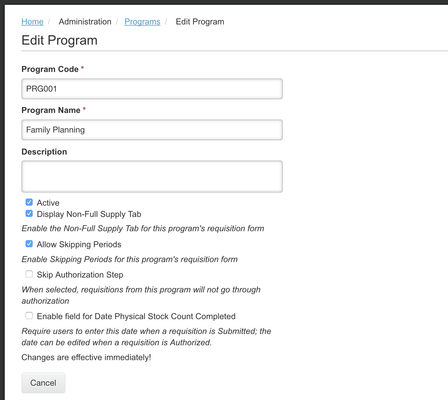
 Any changes to Program Settings are effective immediately
Setting up Requisition Date Physical Stock Count Completed
An optional setting allows you to configure whether the Requisition Form for each program will prompt users to enter a 'Date Physical Stock Count Completed' or not.
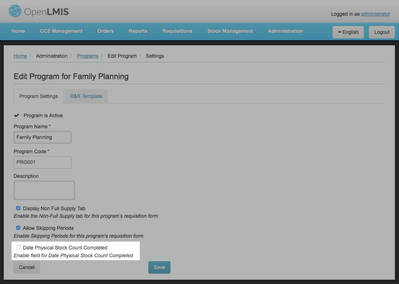
Administrators can enable or disable this under Administration > Programs > Program Settings (screenshot above). By default, this is disabled for each Program. If you Enable it and click Save, it will take effect for all Requisitions for that Program.
When this setting is enabled for a program, any user Submitting or Authorizing a Requisition in that program will be prompted to enter a date that the Physical Stock Count was completed:
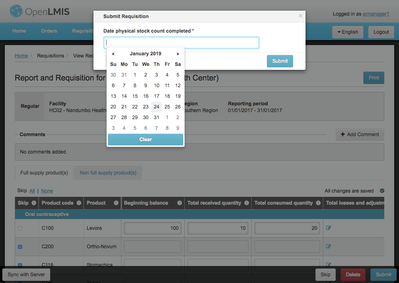
The date prompt first appears when a user Submits a Requisition. A date is required at that time. The date prompt appears again when a user Authorizes the requisition, allowing the authorizing user to view and change that date, if desired. For requisitions where this date has been entered, the date appears in the gray header at the top of the Requisition for all users who can view the Requisition.
The Requisition form saves some of its data in the Stock Management service so that it can be viewed on stock cards. When the setting is enabled, the date captured during the Requisition submission and authorization will be used by the Stock Management service to record the stock quantities as of that specific date. When the setting is disabled, then no such date is captured from users, and the Stock Management service will record stock quantities by using the ending date of the requisition period.
The benefit of enabling this setting is more accurate stock transaction records, although it does require users to conduct data entry of a date during the requisition process.
This setting takes effect immediately, including for in-progress Requisitions. Administrative permissions (to the Program Settings page) are required to change this setting. As soon as this setting is enabled or disabled, users Submitting or Authorizing a requisition will notice this change. This feature was first introduced with OpenLMIS 3.2.0. For background about this feature, see the ticket OLMIS-3023 - Getting issue details... STATUS as well as the wiki documentation Connecting Stock Management and Requisition Services.
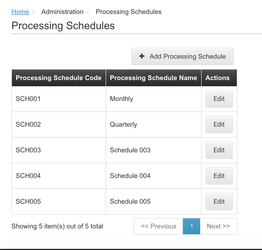
Setting up Processing Schedules
- The Processing Schedule Code is a shorthand description for the Processing Schedule that is only used during initial set up.
- Processing Schedule Name should clearly identify how the schedule will be set by an administrator. This example shows Monthly schedule, but there could also be a Quarterly Schedule. When the administrator creates processing periods they will select the Processing Schedule by this name and create the periods to match. The Monthly Schedule would have a period for each month.
- The Processing Schedule Description is an optional field that could provide more detailed information on the processing schedule.
Example:
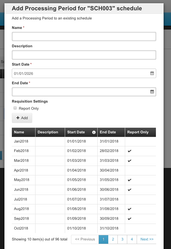
Setting up Processing Periods
- Processing Periods must be defined by the administrator to ensure that requisitions can be entered. Processing Periods are not automatically set up and the administrator must create periods for all the future requisition processing periods so that requisitions are not delayed.
- The Name is a short hand description of the Processing Period and is visible to the users when completing the requisition workflow. The name should provide enough information for a user to understand the period they are completing for their requisitions. This example shows a processing period for each month. If the Processing Schedule was Quarterly, the Processing Period names could be Q1-2017, Q2-2017, Q3-2017, Q4-2017, Q1-2018, etc.
- The Description is a more detailed explanation of the Processing Period. The example shows the Monthly Processing Period, but if the Processing Period was Quarterly the description could be: Processing Period for First Quarter of 2017, then Second Quarter of 2017, and so on.
- The Start Date is the date when the period will start, and the first start date should match when your organization will begin requisitioning. In this example the start date is the first day of the month, but does not have to start on the first day of the first month. If your organization begins using OpenLMIS in the middle of the year, the first start date could be July 1, 2017. If the Processing Period was Quarterly, the start date could be January 1, 2017 for the first period, and then April 1, 2017 for the second period.
- The End Date is the date when the period will end, and must be at least one day after the Start Date. In this example the end date is the last day of the month. If the Processing Period was Quarterly, the end date could be March 31, 2017 for the first period, and then June 30, 2017 for the second period.
- Once the first period is created, the system pre-populates the next period's start date as one day after the previous period created for this schedule.
- The Processing Schedule is the Processing Schedule code created above. To complete the creation of the Processing Schedules you must assign the Processing Period their related Processing Schedule. In this example the Processing Schedule is Monthly (MPS). If the Processing Periods were quarterly, the Processing Schedule could be Quarterly (QTR).
- The Report Only flag allows the administrator to configure requisition processing periods to no longer require a user to enter a requested quantity into a requisition. The report only flag default is false (unchecked). When the flag is set to True (checked) then this period is considered a report only period and this requisition will not result in a requisition being converted to an order. This flag only applies to regular requisitions.
Example:
| Name (required) | Description (required) | Start Date (required) | End Date (required) | Processing Schedule (required) | Report Only (requisition setting) |
|---|---|---|---|---|---|
| Jan-18 | Processing period for January 2018 | 1/1/18 | 1/31/18 | MPS | FALSE |
| Feb-18 | Processing period for February 2018 | 2/1/18 | 2/28/18 | MPS | TRUE |
| Mar-18 | Processing period for March 2018 | 3/1/18 | 3/31/18 | MPS | TRUE |
Now that you have completed set up of the Programs and associated schedules, you will setup your geographic hierarchy.
Interfacing with a facility registry for locations
(In here we will also need to explain the process of how locations are created, the resources used and unused, how the update process works, and the association between facility and geographic zone: Chongsun Ahn (Unlicensed) to update)
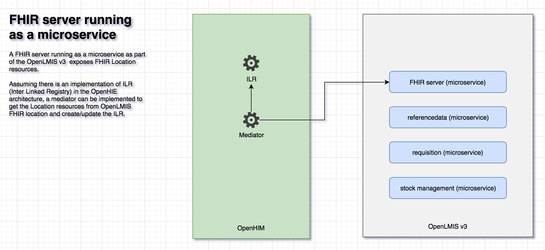
There are two primary use cases that can benefit from an FHIR server implementation in terms of OpenLMIS serving mCSD locations as a provider and consuming locations as an update consumer.
Use case 1: OpenLMIS serving mCSD Locations (Care Service Update Provider)
In this use case, the assumption is that the OpenLMIS implementation is a Care Service Update Provider. OpenLMIS owns an authoritative list of some or all of the Locations and provides those to the federated master facility list management infrastructure. Parts of the facilities that OpenLMIS owns includes supply chain locations like stores, dispensary units. To support such an implementation with as standard compliant service as possible, OpenLMIS can expose read-only FHIR Location resources. In the OpenHIE Architecture, a mediator is able to access the FHIR Location resources that are exposed from OpenLMIS and populate the Interlinked registry.
OpenLMIS v3.5 uses a FHIR server running as a microservice in OpenLMIS.
Use case 2: OpenLMIS as a consumer of mCSD Locations (Care Service Update Consumer)
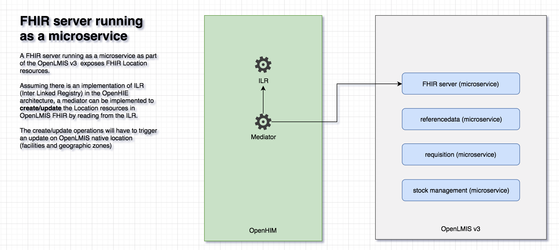
Assumes that there is an implementation of an Authoritative Master Facility List that supplies mCSD conforming Location resource. In this case, OpenLMIS needs to be able to consume those Locations and Updates as mCSD update consumer. The Locations from the other owners are created in the OpenLMIS as appropriate entities like geographic zones and facilities. However, In OpenLMIS, no update is allowed to be made on these Locations that are created and owned by others.
Setup Geographic Hierarchy, Levels, and Zones
Understanding Geographic Hierarchy, Levels, and Zones
OpenLMIS identifies facility locations using a Geographic Hierarchy that is made up of Geographic Levels and Zones. A Geographic Hierarchy helps in outlining the characteristics that make up each level and zone. Geographic Hierarchy also supports reporting, especially when doing comparison reporting of certain trends by region or district. An example of a Geographic Hierarchy is Country, Region, District, where the first level in the Hierarchy is the Country, the second level is Region, and the last is District. A Geographic Level is each level within the hierarchy. A Geographic Zone is the lowest level of the hierarchy and facilities are assigned to a Geographic Zone in the Facility setup detailed in the next section. Although a Geographic Zone is the lowest level of the hierarchy, it does not need to be a the lowest possible level a facility is identified. For example, you would not set up a separate Geographic Zone for every facility, but instead determine the lowest level that reporting needs to use, unless the system is only supporting one facility. Then the setup would only have one zone and one level.
Setting up Geographic Levels and Zones
When defining Geographic Levels you should consider the level that your organization operates on, and which level has the highest rank. If you are operating only regionally, then the Region or Province would be at your highest level, but if you are operating Nationally, then the Country would be your highest level. When creating the hierarchy and levels there is a natural parent to child hierarchy that needs to be defined in the system. The Geographic Zone should be the lowest level that your organization needs to use for reporting because it defines the location of a facility, and the zone is used when creating facilities to associate in reporting. A system intended for use at the national level should use something analogous to “Country” as the highest-defined Level. Likewise, an instance of OpenLMIS intended for use no higher than at a regional Level should something like “Region” as the highest-defined Level. In all cases, the lowest-defined Level should correspond to the most specific granularity within which facilities should be defined.
Geographic Level Example:
- The Geographic Level explains the facility hierarchy and in this example is defined by country, zone, district. For Geographic Levels in this example the Country is the highest level, Malawi. The Zone is Northern, Southern, and Central, and the Districts are Lilongwe, Ntcheu, and Balaka as examples, which happen to be cities in Malawi. Other examples of Geographic Levels is Country, Province, Region or Country, State, County.
- When setting up Geographic Level, the Code should describe the different levels that exist within your hierarchy. This example shows Country, Zone, District, but the code can also be a shorthand description:
- Country: CTRY
- Zone: ZN
- District: DST
- The Name should describe the Code in more detail, in this example they are the same.
- The Level Number determines the order of each level in the hierarchy and must be a number. In this example Level 1 is at the top of the hierachy, which is the Country level, and the next level is 2 - Zone, then 3 - District.
| Code (required) | Name (required) | Level Number (required) |
|---|---|---|
| Country | Country | 1 |
| Zone | Zone | 2 |
| District | District | 3 |
Geographic Zone Example:
- The Code for Geographic Zones is a short hand identification for each zone. This is only visible during the initial set up but is also used in this setup to identify the parent to child relationships.
- The Name for Geographic Zones is a more detailed description of each zone. This is visible to administrators as they are setting up facilities, and visible to users in reports.
- The Level explains the Geographic Level that each entry is associated with and corresponds with the Geographic Level Code that was created in the above section. The Geographic Level tells OpenLMIS where the zone fits in the overall Geographic Hierarchy.
- The Parent must be associated with any levels below the top Geographic Level. Associating the parent to child relationship ensures that the reporting structure is correct. The Parent is not required for the top level, but is required for all other levels.
- The Catchment Population is the nominal population for the Geographic Zone and is used to calculate coverage rates, or compare consumption relative to population. This attribute is optional, and commas should not be included in these numbers.
- The Latitude attribute is the latitude for the zone. A single latitude value cannot fully characterize a country. Instead, this latitude value is typically based on the centroid of the country, and would most commonly be used for positioning markers on a geoplot diagram.
- The Longitude attribute is the longitude for the zone. As with the latitude, this longitude value is typically based on the centroid of the country, and would most commonly be used for positioning markers on a GIS map.
- All latitude and longitude values are expressed as decimal numbers in 8,5 format. This means each value can have a total of up to 8 digits, with up to 5 digits after the decimal point. Positive values for latitude indicate a northern latitude; negative latitude values indicate a southern latitude. Positive values for longitude indicate an eastern longitude; negative longitude values indicate a western longitude. Note that the numbers after the decimal point represent fractional degrees, rather than arc minutes or seconds.
| Code (required) | Name (required) | Level (required) | Parent (optional) | Catchment Population (optional) | Latitude (optional) | Longitude (optional) |
|---|---|---|---|---|---|---|
| Malaw | Malawi | Country | ||||
| cwes | Central West | Zone | Malaw | |||
| cest | Central East | Zone | Malaw | |||
| seas | South East | Zone | Malaw | |||
| NU | Ntcheu | District | cwes | |||
| LL | Lilongwe | District | cwes | |||
| BLK | Balaka | District | seas |
Now that you have completed the Geographic Levels and Zones, you will use the objects to set up your Facilities.
Setup Facilities and Facility Types
Understanding Facilities, Facility Types, and Facility Operator
Facility Types and Facility Operator
Facilities in OpenLMIS is a term used to identify a location that is part of your requisition process. These can be identified by facility types such as health clinics, district hospitals, or warehouses, or even as multiple locations within a district hospital or health clinic. Facilities are used in all of the modules of OpenLMIS: the requisition process, fulfillment, stock management, orders and reporting. Facilities may have one to many Programs and one to many Processing Schedules. A facility cannot have the same Program on different Processing Schedules. Facilities must be set up in order to begin user setup and management for requisition and fulfillment based roles.
Facility Types are used to allow the different assignments of facility type approved products. Reports from the system also list the facility type for reference. There can be many different facility types such as health clinics or district hospitals. Facility Types are also used to assign a program with multiple templates.
The Facility Operator is not required but is useful when generating reports (such as a coverage rate comparison by facility operators). The Facility Operator can be defined in terms of the types of organizations that are operating at facilities. Examples are Ministry of Health or Doctors with Borders.
Setup Facility Type, Facility Operator, and Facility
First the Facility Type and Facility Operator must be set up because these sets of data are used to support the setup of a Facility. For each Facility Type a type, name, description, display order, and active designation should be defined, but not all fields are required. The Facility Operator is not required.
Facility Type Example:
- The Facility Type must be defined before you set up facilities. A facility type can be used to segment product availability, and allows for flexibility in the configuration of requisition templates used in the requisitioning process. Product availability is defined in the next section for Facility Type Approved Products.
- The Facility name is required because it is visible to users as they complete their requisitions and other functions. The name is used to easily identify the facility and should be familiar to the users.
- The Facility description is optional and only visible to the administrator but assists in providing more detail.
- The Display Order is required and determines the order of the facilities within a dropdown in the user's view.
- The Active designation is required and determines whether a user can see the facility. If a facility is inactive (Active = No) then the facility will not appear for any user. Facilities are not deleted from the system, but only marked as inactive and disabled.
| Facility Type (required) | Name (required) | Description (optional) | Display Order (required) | Active (required) |
|---|---|---|---|---|
| Warehouse | Balaka District Warehouse | Balaka District Warehouse | 3 | Yes |
| Health Center | Kankao Health Facility | Kankao Health Facility | 1 | Yes |
| District Hospital | Balaka District Hospital | Balaka District Hospital | 2 | Yes |
Facility Operator Example:
- The facility operator code attribute is shorthand for the facility operator name and is never seen by general users.
- The name attribute is used as the actual display name in OpenLMIS for each facility's operator, and thus visible to general users.
- Display order determines the order in which the available facility operators are presented to a user when creating a new facility or editing an existing facility.
| Code | Name | Description | Display Order |
|---|---|---|---|
| MOH | Ministry of Health | Ministry of Health | 1 |
If a facility is no longer in use, updating the Active designation to 'No' will not remove the facility from all user's views. An inactive facility remains in a user's navigation menu for historical purposes, such as viewing historical reports.
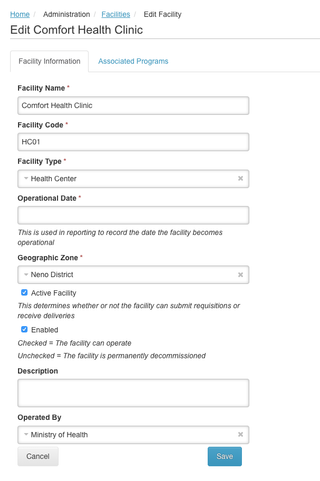
Facility Example:
- The Facility Code is an identifier that must be unique per facility that is visible to the administrator and to users in their reporting.
- The Name is the common name for the facility. The facility name appears on most screens and is used to assist in navigation or forms.
- The Description is optional and can be used to provide more detail to the administrator about the facility.
- The Geographic Zone is a required selection based on the geographic zones set up in the Geographic Zone section above.
- The Facility Type Code is a required selection based on the facility types set up above.
- The Active designation determines whether or not whether or not it can submit requisitions or receive deliveries. This should be set to Active (True = Yes, or False=No). A facility can be set to inactive if it is temporarily shut down but resumes activity at a future date.
- The Go Live Date (Operational Date) is required and is used in reporting to record the date the facility becomes operational.
- The Go Down date is optional.
- The Comment field is optional.
- The Enabled field is a required designation that determines whether the facility can operate (True = YES), or has been permanently decommissioned (False= NO).
| Facility Code (required) | Name (required) | Description (optional) | Geographic Zone (required) | Facility Type Code (required) | Facility Operator (optional) | Active (required) | Go Live Date (Operational Date - required) | Go Down Date (optional) | Comment (optional) | Enabled (required) |
|---|---|---|---|---|---|---|---|---|---|---|
| HF01 | Kankao Health Facility | Southern Region | Health Center | YES | 01/01/2016 | YES | ||||
| WH01 | Ntcheu District Warehouse | Ntcheu District | Warehouse | YES | 01/01/2016 | YES |
Associate Facilities and Programs Supported
Understanding Associated Facilities and Programs Supported
Once facilities are set up you must assign the programs and details associated with each facility. Facilities in OpenLMIS can support one to many programs that are available at one to many facilities (with some variations). Assigning a program to a facility qualifies the program and its related orderables to be used in the requisitioning process for that facility. A facility must be assigned a program that is active, as well as a valid start date for that program in order to be used. Designating a program to be fulfilled locally is also a part of the set up of facilities and associated programs.
Associate Facilities and Programs
Example:
- The Facility Code is the identifier assigned to each facility during the setup process described above in the Facility set up.
- The Program Code identifies the program that will be supported at the facility and must be one of the programs defined in the Program set up process above.
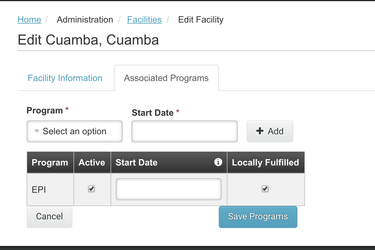
- In the Administration menu under Facilities, after selecting a facility, once a program is assigned to the facility, the associations are made with the Facility Code and Program Code.
- The Active designation indicates whether the program is active at the facility. The default should be NO (False), but if the program is active then a start date must also be entered.
- The Start Date is required only if the Program is Active flag is set to True (Yes). The start date determines the first date available that the user will enter in requisitions related to the program. For example, if the start date is set to two months prior, then the user must begin requisitioning two month's prior. If the start date is set two months in the future, the user will not be able to enter in requisitions until that date.
- The Locally Fulfilled field allows for configuration of whether a facility's supported programs can be fulfilled locally, instead of through external fulfillment. By selecting the Locally Fulfilled checkbox, the program will also skip the Convert to Order step in the fulfillment process.
| Facility Code (required) | Program Code (required) | Program is Active (required) | Start Date (optional) | Locally Fulfilled (optional) |
|---|---|---|---|---|
| HC01 | Family Planning | YES | FALSE | |
| HC01 | Essential Meds | YES | FALSE | |
| N003 | EPI | YES | TRUE |
Example of facility that is fulfilled externally:
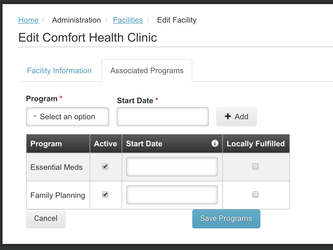
Example of facility that is fulfilled locally:
Facilities and FHIR Locations
OpenLMIS comes with a built-in facility registry that is compatible with a subset of the Mobile Care Services Delivery (mCSD) profile of the Fast Healthcare Interoperability Resources (FHIR) specification. This is for interoperability with other facility registries in order to easily synchronize data as it is managed.
To support the mCSD profile, OpenLMIS exposes facilities and their geographic data as FHIR Locations. The system also handles facility updates by automatically syncing changes to the corresponding locations. As long as the built-in FHIR server is running, no additional configuration is necessary.
Setup Facility Type Approved Products
The purpose of Facility Type Approved Products allows you to segment orderables by facility type. Although a program supports a specific list of orderables, different facilities may not have the capacity to support providing the orderables. This is why you would want to segment orderables by facility type. Each facility that performs duties related to the requisition process must be set up with their Facility Type Approved Products.
Setting up Facility Type Approved Products per Orderable
- The Facility Type is the Facility Type code identified in the Facility setup process. This determines which facility types will have the orderables available in their requisitions.
- The Orderable is the orderable name from the orderables setup process. An orderable can be approved for many facilities and programs or an orderable may only be available at certain facility types like District Hospitals instead of Health Clinics because there is limited space.
- The Program is the Program Code that is associated with the orderable in the orderables setup process. In this example you can see the orderable is available for two different programs: Essential Meds and TB, and at two different Facility Types: heac (health center) and DHO (District Hospital).
- MaxPeriodsofStock is the maximum number of periods used for the MaxPeriodsofStock calculation in the requisition template.
- MinPeriodsofStock is the minimum number of periods used for the MinPeriodsofStock calculation in the requisition template.
- EmergencyOrderPoint is not required. The Emergency Order Point attribute is intended to specify the emergency order point for a facility. This attribute is not used by OpenLMIS for replenishment calculations. It is included as a convenience and listed in the header of each requisition as a general guideline.
 It is important to correctly configure the Max Periods of Stock per Product because it is included in the calculation for the Dispensing Units and affects the Total Cost on every requisition. (This is detailed more in the R&R Template section below.)
| facilityType (required) | orderable (required) | program (required) | maxPeriodsOfStock (required) | minPeriodsOfStock (optional) | emergencyOrderPoint (optional) |
|---|---|---|---|---|---|
| heac | TB000100 | em | 3 | 3 | 1.5 |
| heac | TB000100 | tb | 3 | 3 | 1.5 |
| DHO | TB000100 | em | 3 | 3 | 1.5 |
| DHO | TB000100 | tb | 3 | 3 | 1.5 |
Now that you have set up your facilities you are ready to set up the objects that enable the workflows in OpenLMIS.
Setup Ideal Stock Amounts
Understanding Ideal Stock Amounts
The Ideal Stock Amount is a yearly estimate of the “target” number of doses of a vaccine you should have based off of your population served (i.e. catchment population). This model for estimating the number of vaccine doses you need is irrespective of vial size, packaging, manufacturer, etc. so that you focus on a single number of doses that you should have at any given time. For more rural service delivery points, this time is typically the number of doses you should have in a year, divided by 12 months with the idea that your refrigerator can only hold up to about a month's worth of vaccines at a time. The Ideal Stock Amount (ISA) can be used in reordering calculations for OpenLMIS for a vaccine program.
Setting up ISA by Facility, Commodity Type and Period
Ideal Stock Amounts (ISAs) are configured by facility code, commodity type, and period. An initial load of ISAs is done by uploading a .csv file with the following columns:
- Facility Code is the Facility that will be associated with the ISA.
- Commodity Type can be the UNSPSC code from https://www.unspsc.org/
- Period is the period or schedule that the ISA will be applied to, for example an ISA for the year may be 200,000 while broken down by a monthly reporting period would only equal to
- ISA
| Facility code (required) | Commodity Type (required) | Period (required) | ISA (optional) |
|---|---|---|---|
| N030 | UNSPSC|51201621 | SCH001|Mar2018 | 8900 |
| N080 | UNSPSC|51201647 | SCH001|Dec2017 | 1000 |
 Any updates to the ISA can be done by exporting the ISAs into a csv file and completing the steps listed on Administration > Ideal Stock Amounts > Manage Ideal Stock Amounts page.
Setup Stock Management
Stock Management is the process of managing stock by recording physical inventory utilizing stock cards, and using reason categories to record and track stock movements. In the Stock Management screens as well as in the Requisition form, storeroom managers need to record the reason for each stock event, e.g. adjustment, receive or issue. First, you must configure adjustment reasons for each stock event.
Setup Adjustment Reasons
OpenLMIS provides a page for the system administrator to manage the reason list. There are reason categories ('Transfer', 'Adjustment', and 'Aggregation') and reason types ('Debit' and 'Credit').
- An Adjustment or Transfer category is a predefined type of stock movement that is configured with reasons for a user to select and associate with the stock movement.
- The Receive and Issue stock movement types record two standard movements that adjust stock levels. The Receive type occurs when a facility has received stock that wasn't requested through the regular requisition workflow. The Issue type occurs when a facility needs to issue stock that wasn't requested through the regular requisition workflow.
- Credit or Debit is used to assist in the calculations for Stock on Hand. When creating different adjustment types, you must select whether the adjustment is a credit (addition or positive) to the stock on hand or a debit (subtraction or negative) to the stock on hand.
A reason can allow free text. By allowing a reason to support free text, a store manager can input a description to this reason to provide more detail about the reason. For an example, a reason labeled 'Other' is a 'transfer' category and 'credit' type reason. When the storeroom manager chooses this reason for a receive stock event then the storeroom manager can input description (e.g. NGO-VR) to explain the reason 'Other'.
- Aggregation
- The reason type 'Unpacked from kit' and 'Unpack kit' are only specific to kits (products that have children).
| Category | Reason Type: Credit | Reason Type: Debit |
|---|---|---|
| Transfer | Receive | Issue |
| Adjustment | Positive adjustment | Negative adjustment |
| Aggregation | Unpacked from kit | Unpack kit |
Version Note
Starting with version 3.2.1, you can select whether reason for Program and Facility Type should be shown or hidden. The default for new reasons is 'Show', but if you un-check the Show setting, then that reason will not be displayed in the Requisition form Total Losses and Adjustments and also will not appear in the Stock Management adjustments form.
Introduced in version 3.2.0, the requisition columns for Beginning Balance, Received Quantity, and Consumed Quantity now get mapped to stock management reasons. Those reasons are first configured as Valid Reason Assignments in the stock service and are visible in the Total Losses and Adjustments modal. The specific 4 reasons which are configured in the .ENV file are: CONSUMED, RECEIPTS, BEGINNING_BALANCE_EXCESS and BEGINNING_BALANCE_INSUFFICIENCY.
For Requisitions to be approved, there must be 4 reasons configured in the Requisition service, and those 4 reasons must be valid reasons for all Program and Facility Types using Requisitions. These 4 reasons should be set to hidden (un-check Show), and the Requisition service will still be able to use them even though they are not shown on the list when end-users select reasons.
See an Example request in Postman for Facility Type Health Center, Program Family Planning from demo data and CONSUMED Reason:
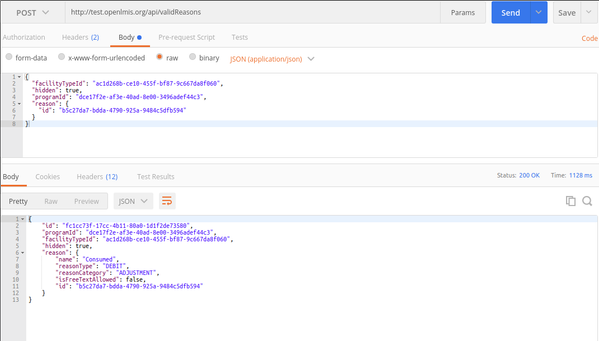
When creating a new Reason the following fields are required or optional:
- The Name field is required and is a free text field that is a short explanation to the user about the Reason.
- The Category field is required and determines whether the Reason is an Adjustment or a Transfer. An Adjustment is used for an adjustment type stock event, while Transfer is used for receive/issue stock events.
- The Type field is required and is used in the requisition or stock management calculation and determines whether the reason is a credit (positive or an addition to stock) or debit (negative or subtraction from stock).
- The Allow Free Text field is optional and is enabled (checked) when a reason may need more details added to it that the end user enters as they are adding adjustments or transfers.
- Tags are an optional way to group reasons. They are a free text label assigned by the implementer or administrator. For example there are individual reasons such as "Facility return" and "Receipts" that are tagged with "received". This means the individual reasons can now be grouped in a report by using that one tag "received".
- A Program is required to be assigned to a new Reason so that it can be used as an adjustment or transfer reason for that program. At least one Program must be assigned per Reason.
- Once a Program is assigned, a Facility Type is also required. The Facility Type list is based on the Facility types set up in the section above.
- The Show or Hide checkbox is required and is used to determine whether or not the Reason is displayed for users. Typically all Reasons should be available for users so that they can select them to use when creating an Adjustment in stock management, or a Loss and Adjustment in requisitions. There are system specific Reasons that are used between the requisition and stock services, and these are hidden from the users because they cannot manually assign these Reasons.
Example:
| Name (required) | Category (required) | Type (required) | Allow Free Text (optional) | Tags (optional) | Program (required) | Facility Type (required) | Show (required) |
|---|---|---|---|---|---|---|---|
| Receipts | Adjustment | Credit | FALSE | received adjustment |
|
| |
| Damage | Adjustment | Debit | FALSE | adjustment debit |
|
| TRUE |
| Cold Chain Failure | Adjustment | Debit | FALSE |
|
| TRUE |
You can select multiple programs and facility types for each reason to be valid/enabled at. Sharing Reasons across programs is recommended for consistency of reporting. We do not recommend making repeated/duplicate copies of the same reason for the use by different programs unless there is a difference in meaning or use for the different programs.
Process
- Go to the Administration > Reasons page via the navigation bar:
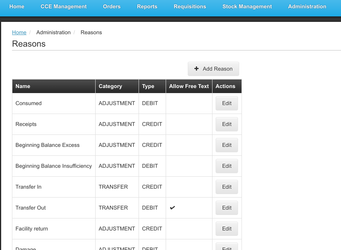
2. Click 'Add Reasons':
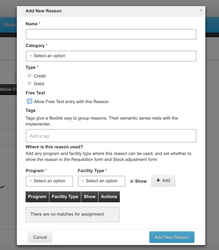
3. Fill in required fields to create a new reason, including adding all Programs, corresponding Facility Types for which the reason should be valid/enabled and set whether this assignment should be shown or hidden:
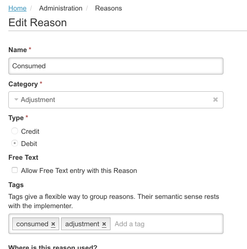
5. Stock Reason Tags are used to group reasons. For Stock-Based requisitions, configuring the stock reason tags will enable the system to group stock events to calculate the required stock card columns. This is defined more in the Requisition Template section of the Configuration Guide.
6. After you click Add New Reasons, the Reason is added and the updated list is displayed:
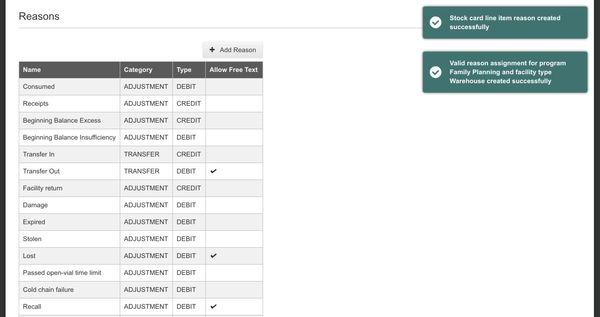
Once added, the new reasons will immediately be available in the Stock Management screens based on Program and Facility Type. The reasons will be applied to new Requisitions when they are initiated. Requisitions use these reasons for the "Total Losses and Adjustments" field that is collected for each product on the requisition form.
Requisitions initiated prior to the addition of new reasons, will use the reason list that was in place at the time they were initiated.
Version Note
Setup new organizations for Stock Management events
Understanding new organizations
The Stock management service allows the system administrator to create new organizations in the system to be the source/destination for the receive/issue stock event. As of OpenLMIS 3.2.0, Organizations are only used in the Stock Management screens, but not used within the Requisition form. Adjustments recorded in the Requisition form do not have source/destination information.
New created organizations are free-text allowed default setting. Meaning, all the added organizations support free-text but this free-text description field is optional and user can leave it blank.
Process:
Go to the swagger API - https://test.openlmis.org/stockmanagement/docs/#!/default/post_api_organizations
Find the below API and send a post request in order to create new organizations.
There is another API to get the full set of all created organizations:
Assign/Cancel organizations/facilities as Destination in Stock Management
The Stock management service allows the system administrator to assign facilities or organizations as the destination of an issue stock event for a specific program and facility type combination.
Process:
Go to the swagger API - https://test.openlmis.org/stockmanagement/docs/#!/default/post_api_validDestinations
Find the below API and send a post request in order to assign organizations/facilities to a facility type and program.
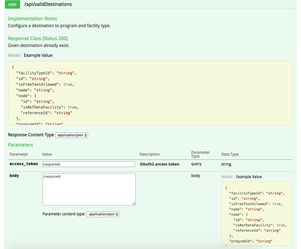
Among those fields in the request body, there are three mandatory fields:
facilityTypeId - determines which facility type is assigned to
referenceId - is the ID of a facility or an organization.
programId - determines which program is assigned to
Moreover, we also provides the API to remove the assignment.
Go to the swagger API - https://test.openlmis.org/stockmanagement/docs/#!/default/delete_api_validDestinations_id
Find the below API and send a request to call this API in order to remove the assignment of organizations/facilities for a facility type and program.
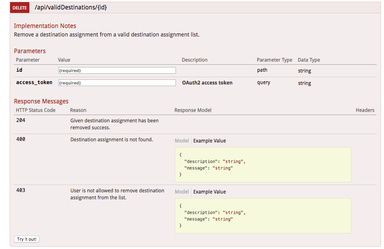
In order to present the example configuration for valid destinations and valid sources, the exemplar facility types and facility codes are presented below:
| facilityType | facilityTypeCode | facilityCode |
|---|---|---|
| Clinic | privC | FAC01 |
| Private Hospital | privH | FAC02 |
| Warehouse | warehouse | FAC03 |
| Clinic | privC | FAC04 |
| Private Hospital | privH | FAC05 |
| Warehouse | warehouse | FAC06 |
In this example there are three facility types (Clinic, Private Hospital and Warehouse) and six facilities of each type.
Valid Destinations table, apart from program code, consists of facilityTypeCode and destination columns.
In facilityTypeCode column there should be all codes of facility types which are able to supply other facilities. In destination column there should be facility codes of facilities which are supplied by a facility of type indicated in facilityTypeCode column.
The Valid Destinations table for these configuration is created below:
| facilityTypeCode | destination |
|---|---|
| warehouse | FAC01 |
| warehouse | FAC02 |
| warehouse | FAC04 |
| warehouse | FAC05 |
| privC | FAC01 |
| privC | FAC04 |
| privH | FAC02 |
| privH | FAC05 |
Valid Sources table, apart from program code, consists of facilityTypeCode and facilityCode/organizationName.
In facilityTypeCode column there should be all codes of facility types which are to be supplied by warehouses or organizations.
In facilityCode column there should be codes of facilities which supply other facilities. Most often it will be a warehouse.
In organizationName column there should be a name of a supplying organization if there is such.
The Valid Sources table for these configuration is created below:
| facilityTypeCode | facilityCode | organizationName |
|---|---|---|
| privC | FAC03 | |
| privH | FAC03 | |
| privC | FAC06 | |
| privH | FAC06 |
In the table there are warehouses’ facility codes (FAC03, FAC06) in the facilityCode column. It means that these facilities supply facilities of privC and privH facility types.
Setup Supervisory Nodes, Requisition Groups, Supply Lines
Understanding Supervisory Nodes, Requisition Groups, and Supply Lines
The requisition workflow associates processing schedules, programs and facilities via the concept of a Requisition Group. A Requisition Group is a way to manage the replenishment process for multiple facilities or approval hierarchies. At least one Requisition Group and one Supervisory Node must be created and associated with each other in order for the requisition workflow to function. Requisition Groups can have: one to many facilities, one to many programs, one to many schedules. There are a few factors that determine if more than one Requisition Group need to be set up and they are: if multiple programs require different tiers of approvals (one to many Supervisory Node associations), and if multiple programs require a different order of approvals.
A supervisory node is not a physical entity or location, but rather a sort of logical control point through which requisitions are routed for review and approval, and must always exist for a requisition to be approved. Supervisory nodes are thus a mechanism that OpenLMIS uses to control the workflow of requisitions. Typically, a user would be given review-and-approval rights for requisitions passing through a particular supervisory node, and these rights could be assigned for one program or multiple programs that the requisition group handles. A Supervisory Node is required for every Requisition Group so that the association creates an approval hierarchy for the requisition workflow. Only one Supervisory Node can be assigned to a Requisition Group, so if there are multiple Requisition Groups there must be more than one Supervisory Node. Also if the approval hierarchy requires an approver above the first Supervisory Node, then a parent Supervisory node must be created (Supervisory Node tree). Creating a Supervisory Node doesn't automatically enable approval capabilities until it has been associated with a user and a program.
Supervisory nodes are also used to manage and assign Supervision type rights for individual users of the system. Supervision Rights are used in a variety of situations where we'd like to give a user some capabilities within an administrative hierarchy, typically to some aspect of the supply chain focused at Facilities, divided by Program.
Supply lines are the mechanism that OpenLMIS uses to route orders to the correct supplying facility, to be packed and shipped. Supply lines are specified on a per-program basis. Orders for all programs can be routed to the same supplying facility, or can be routed selectively, based on how your supply chain operations are structured. Orders for most programs might be filled out of a regional or national warehouse, while orders for a vaccination program might be filled out of a different facility which has adequate cold-storage capacity.
Setting up Supervisory Nodes
For each Supervisory Node, a Supervisory Node code, Supervisory Node name, Description, Parent Node, and Facility Code can be defined but not all fields are required. The Supervisory Node Code is a required field. The code is an alphanumeric identifier that is the shorthand description for the Supervisory Node and is used when CSV uploads are part of the setup process (referenced in Step #3). The Supervisory Node name is also required, and is the common name for the Supervisory Node that will be visible to the administrator when completing assignments so the name should be meaningful for the organization. The description is an optional field that can further assist in identifying the Supervisory Node purpose or responsibilities. The Parent Node is only required if the Supervisory Node needs a higher level approval to complete the approval process. The Facility Code is the facility associated with the Supervisory Node.
Example:
- When creating the Supervisory Node Code you should take into consideration whether a Parent Node is required. Numbering the code helps easily identify the hierarchy between a Parent Node and Child Node by just the code. For example, a Parent Node could have a Supervisory Node Code beginning with 1, while the Child Nodes would start with 1.1, 1.2, 1.3, etc. (per the example below) or the Parent Node code starts with a higher number range (80 - 100) while the Child Nodes would have a lower range (10 - 79).
- When creating the Supervisory Node Name and description, you should take into account the role of the Supervisory Node. If the Supervisory Node is responsible for all approvals of specific program, schedule, facility, or region, then naming the Supervisory Node after this will make most sense to your users.
- The Description is optional and only visible to the administrator, but is helpful when verifying Supervisory Node setup.
- The Parent Node will only exist if there is an approval level above the specific supervisory node.
- The Facility Code is the facility associated with the Supervisory Node.
| Supervisory Node Code (required) | Supervisory Node Name (required) | Description (optional) | Parent Node (optional) | Facility Code (required) |
|---|---|---|---|---|
| SN1 | FP Approval point | Family Planning approval point | HC01 | |
| SN1.1 | FP Approval sub point | Family Planning approval sub point | SN1 | DH01 |
| SN-CUAMBA-DIST | Cuamba district approval point (EPI) | Niassa province approval point (EPI) | D001 - Depósito Distrital Cuamba |
Setting up Requisition Groups
A requisition group is a concept that is used to tie facilities together to drive the approval process and allows for management of replenishment processes. For each Requisition Group, a Requisition Group Code, name, Supervisory Node, and description must be defined but not all fields are required. The Requisition Group Code is a shorthand for identifying the requisition group, and is used in subsequent CSV uploads of related data. The Requisition Group Name is common name for group, and will appear on various admin screens for managing requisition groups and members. It is recommended that the name be something meaningful to your organization's operations. The Supervisory Node identifies the Supervisory Node to which all requisitions from this group's member facilities will be routed. The description is for any additional descriptive information that will be helpful when setting up or managing requisition groups and members.
Example:
- When creating a Requisition Group Code and Name, its helpful to use the characteristic that separates the requisition group from others in the code and name. For this example the shorthand for the program and schedules used to show the uniqueness requisition group.
- The Supervisory Node code is the Supervisory Node set up in the example above, and will be the approval points for the Requisition Group.
- The Description is optional and only visible to the administrator, but is helpful when verifying Requisition Groups.
| Requisition Group Code (required) | Requisition Group Name (required) | Supervisory Node Code (required) | Description (optional) |
|---|---|---|---|
| RGFP1 | RG Family Planning 1 | SN1 | Supports facilities running the family planning program on a monthly schedule |
| RGEM1 | RG Essential Meds 1 | SN2 | Supports facilities running the essential meds program |
| RGFP2 | RG Family Planning 2 | SN1.1 | Supports facilities running the family planning program on a quarterly schedule |
| RGEPI1 | RG EPI 1 (districts) | SN-NIASSA-PROV/Niassa province approval point | Niassa province approval point (EPI) |
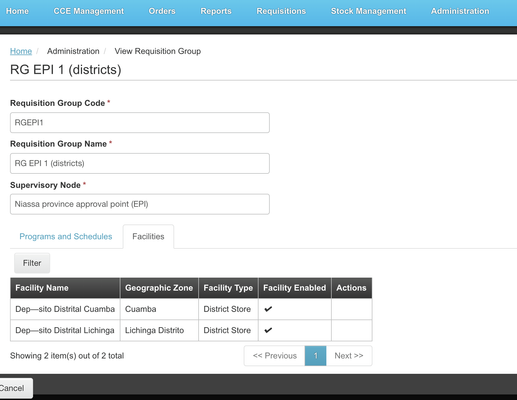
Associating Requisition Group Programs and Schedules
Example:
- The RG code is shorthand to describe the requisition group. This field must be one of the RG codes defined in the earlier upload of requisition groups.
- The program identifies the program that the requisition group supports. This field must be one of the program codes created in the Program setup process.
- The schedule attribute identifies the Processing Schedule on which the requisition group will operate the program. This is created in the Processing Schedule setup process above.
- The direct delivery attribute is a flag indicating whether or not shipments are delivered directly to the facility that initiated the requisition, or are delivered to a designated drop-off location, whereupon the facility staff will come by later to pick up their shipment. In the example we've discussed thus far, this scenario has not applied. However, it could be more common where an organization operates a number of mobile outreach health care units, none of which have permanent physical locations. Their shipments might instead be dropped off at a district office, and the mobile units stop by the district office later to pick up their shipment.
- The drop off facility attribute specifies the drop-off location in cases where direct delivery does not apply. This field must be one of the facility codes defined when creating facilities, as part of Step #5. This field should be left blank in cases where direct-delivery is true.
| Requisition Group Code (required) | Program (required) | Processing Schedule (required) | Direct Delivery (required) | Drop off Facility (optional) |
|---|---|---|---|---|
| RGPS1 | EM | MPS | TRUE | |
| RGPS2 | HIV | MPS | TRUE |
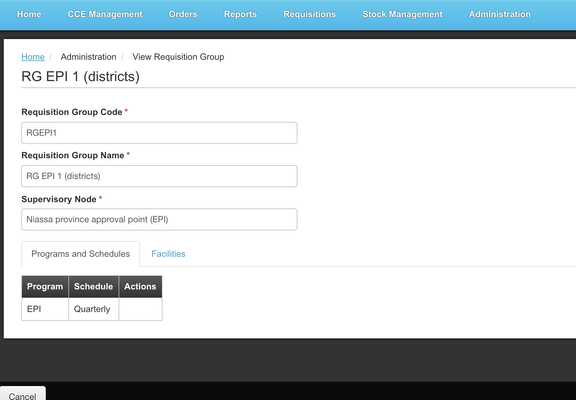
Setting up Supply Lines
Supply lines are the mechanism that OpenLMIS uses to route orders to the correct warehouse or facility, to be packed and shipped. Supply lines are specified on a per-program basis. Orders for all programs can be routed to the same warehouse or facility, or can be routed selectively, based on how your supply chain operations are structured. Orders for most programs might be fulfilled by a regional or national warehouse, while orders for a vaccination program might be fulfilled from a local facility which has adequate cold-storage capacity.
Supply lines for external fulfillment are specified for supervisory nodes that are at the top node of their supervisory hierarchy, because this is the point from which the orders are released to a warehouse to be filled. For local fulfillment, the supply lines may be defined at an intermediary level in the supervisory node hierarchy. Then the approval at that intermediary level is considered a final approval that will create an order to fulfill. Each supervisory node at the top of their hierarchy must have a supply line specified for each program that is supported by the requisition groups under its supervision. This includes both requisition groups under its immediate supervision, as a supervisory node only has one requisition group it directly supervises.
Example:
- The Supervisory Node attribute is the supervisory node code from the section above. It identifies all facilities that this supervisory node supervises, directly or indirectly. For example, all member facilities in this node's requisition group and member facilities from requisition groups from child supervisory nodes. If an intermediary level supervisory node fulfills locally, then they are considered the final approval and should have their own supply line to allow for fulfillment.
- The Program attribute identifies the program that the requisition group supports. This field must be one of the program codes defined during the program setup process and is required.
- The Supplying Facility attribute identifies the warehouse or facility that will fulfill the orders and is required. This field must be one of the facility codes defined during the facility setup process.
- The Description attribute is for any additional descriptive information that will be helpful when setting up or managing supply lines. This field is optional.
| Program (required) | Supervisory Node (required) | Supplying Facility (required) | Description (optional) |
|---|---|---|---|
| FP | SN1 | WH01 | Ntcheu District Warehouse supplies Family Planning |
| Essential Meds | SN2 | WH02 | Balaka District Warehouse supplies Essential Meds |
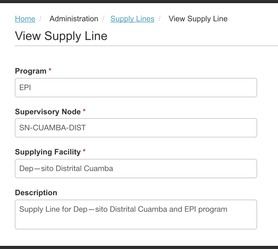
In the Supply Lines list view, you are able to view the facilities that the Supervisory Node supervises by hovering your mouse over the Supervisory Node column.
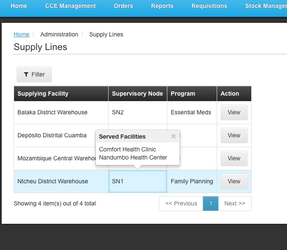
Make sure the Supply Line is configured with the correct Supervisory Node. If a Supply Line is configured to a child Supervisory Node then the facility associated with that child node will not need a parent node approval. (This configuration may be desired for local fulfillment.)
Setting up Supply Partners (in progress for 3.5 updates)
(Add explanation of multiple supply partners and the need, as well as the administrator configuration screens here Nikodem Graczewski (Unlicensed))
Link to Supervisory Hierarchy diagram
Understanding User, Roles, and Rights
Understanding Users, Roles, and Rights
A user in OpenLMIS is a person who accesses the system. A user is assigned a role(s) to control their access rights within the system. Role assignment is critical for users to have the appropriate access within the system. A Role is a combination of one or more rights available in OpenLMIS. Rights relate to individual actions that a user can take, such as view a report, or create a requisition. There are four role types already defined in the system: Supervision, Fulfillment, Reporting, and Administration.
Rights within Roles (Role Based Acess Control)
Understanding Role Based Access Control in OpenLMIS
UPDATE: Activity, sequence and class diagrams for RBAC implemented in v3
OpenLMIS uses a basic RBAC mechanism for granting access to certain capabilities, called rights, by grouping those capabilities into named buckets called roles.
This basic structure is then further refined by applying basic roles to users by Programs, Supervisory Nodes, Delivery Zones and Facilities. Of these, applying roles to Supervisory Nodes is the most complex as the hierarchical nature of supervisory nodes leads to rights applied to a supervisory node potentially effecting the capabilities a user has with all children supervisory nodes and facilities.
From a user's perspective these rights when applied to the other structures described above allow a user to either interact with general operations of OpenLMIS or more typically specific roles within the supply chain.
This is seen on a User's Profile as roles assigned under various headers / buckets:
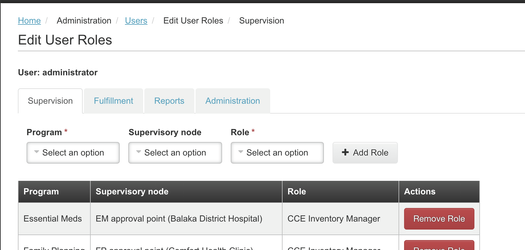
As well as the Roles management screen as rights grouped into various buckets:
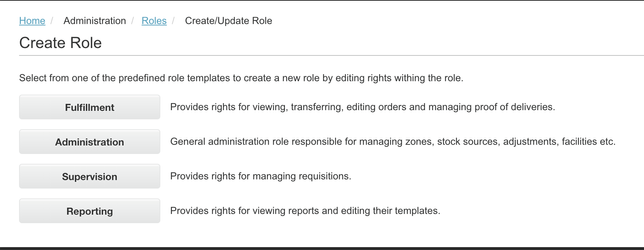
These general buckets are:
Role types and their associated rights
Supervision
Supervision Rights are used in a variety of situations where we'd like to give a user some capabilities within an administrative hierarchy, typically to some aspect of the supply chain focused at Facilities, divided by Program. While this type of right grew out of the supervisory nature of most requisition processes, it has expanded to apply to equipment management, stock management, and fulfillment.
While Supervision Rights typically need to be associated to a user by a Supervisory Node and Program, if a user has a Home Facility, then rights of this type can actually be applied directly to that Facility by Program. When these rights are applied directly to a User's Home Facility, then we don't have to reason about any administrative hierarchies. However most of the time we consider supervisory rights, we have to reason about the hierarchy they might apply to given the structure defined by the Supervisory Nodes and Programs they are assigned by.
This role type allows users rights to requisition, stock management, CCE, and orders processes.
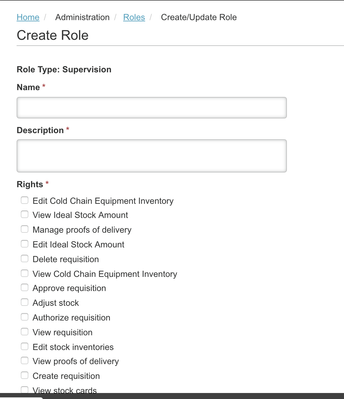
- Must be associated with a Facility (Home Facility and/or Supervised Facilities)
- Assigning a Home Facility associates Supervision rights to the facility designated. The user's home facility will determine their access in Requisition and Stock Management
- To enable Supervision related rights for other facilities a Supervisory Node must be assigned
- Must be associated with a Program and a Role for Home Facility supervision
- Must be associated with a Program, Supervisory Node, and Role for other facility supervision
Supervision rights in Requisition
If a right isn’t assigned within a role, the user will not have access to complete that specific function. For example, assigning a Supervision role to a user will not give them access to approve requisitions unless the Approve Requisitions right is checked within the Supervision role. A user may have the rights to delete a requisition, but the system checks whether the status of the requisition will allow for the requisition to be deleted. If a requisition has been Authorized, a user cannot delete the requisition even if they have the rights assigned. This requisition would need to be rejected by a user that has the role and right to approve a requisition.
View requisition (REQUISITION_VIEW):
Any user that needs to access requisitions should have the View requisition right. A user that may only need to view requisitions and not make any edits or take any actions on the requisition should be assigned this right.
Authorize requisition (REQUISITION_AUTHORIZE):
A user with this right can authorize a requisition once its been submitted. If a user has the Authorize requisition right, they should also be assigned the View Requisition right.
Create requisition (REQUISITION_CREATE):
A user with this right can initiate and submit a requisition based on their facility and program assigned. They also have the right to edit an initiated requisition until it has reached the Authorized status. If a user has the Create requisition right, they should also be assigned the View Requisition right.
Delete requisition (REQUISITION_DELETE):
Most users with access to requisitions will have this right, but the ability to delete a requisition is also based on the requisition status (as explained in the Requisition States and Workflow diagram above). If a user has the Delete requisition right, they should also be assigned the View Requisition right.
Approve requisition (REQUISITION_APPROVE):
Users with this right can approve requisitions once they have been submitted, and they will also have the right to Reject a requisition that is in the submitted status. If a requisition is in the authorized status, this right allows the user to edit the approved quantities in the requisition. If a user has the Approve requisition right, they should also be assigned the View Requisition right.
Example of Supervision rights relating to Nodes and Facilities in a Requisition:
The following diagram attempts to show a simple structure and how Supervision Rights apply within that structure, note that this is all in one program:
- Storeroom Assistant: supervisory rights create and view requisition on his/her Home Facility.
- W. Clinic Director has supervisory rights on his/her Home Facility to authorize the requisition.
- D. Supervisor has supervisory rights to approve the requisition on the supervisory node D. Supervision. This is enabled as D. Supervision supervises the Requisition Group of which W. Clinic is apart of.
- R. Supervisor has supervisory rights to approve the requisition on the supervisory node R. Supervision. This is possible as R. Supervision is the parent/supervisor of the D. Supervision node.
- R. Fulfillment Officer has order fulfillment right's on R. Hospital. This now leaves the requisition process so the diagram stops, however note that this is enabled as the R. Supervision node is associated with R. Hospital.
Supervision Rights in Stock Management
Edit Stock Inventories (STOCK_INVENTORIES_EDIT):
A user with this right can create a physical inventory and can submit a physical inventory within a specific Program and Home Facility. The STOCK_INVENTORIES_EDIT right only works with a single Program. So if a user should have permissions to conduct physical inventories for multiple programs, you would need to assign the right individually for each program to that user.
Adjust Stock (STOCK_ADJUST):
A user with this right can make a stock adjustment, potentially altering the SOH, for any Orderable that is part of a specific Program and HomeFacility/Node.
View Stock Cards (STOCK_CARDS_VIEW):
Can view all the stock cards and line items for any Orderable that is part of a specified Program and HomeFacility/Node. Viewing the stock card with all its line items, including all historical line items, and printing. Viewing and printing an SOH summary showing a stock card's SOH
Supervision Rights in Cold Chain Equipment Management
View Cold Chain Equipment Inventory (cceInventoryView):
A user with this right can view all CCE equipment inventory for the facilities that they are assigned.
Edit Cold Chain Equipment Inventory (cceInventoryEdit):
A user with this right can make edits to the CCE equipment inventory for the facilities that they are assigned.
Supervision Rights in Orders
View Proofs of Delivery:
A user with this right can view all Proofs of Delivery for the facilities that they are assigned.
Manage Proofs of Delivery:
A user with this can edit all Proofs of Delivery for the facilities that they are assigned. If a user has the Manage right, they should also be assigned the View right.
Fulfillment
Order Fulfillment Rights give capabilities to a user to create orders, view orders, fulfill orders, and view and edit shipments. This type of Right associates a User with a specific Facility for which these capabilities are allowed. The type of facility typically allowed to have fulfillment based rights are ones that supply others.
This role type allows users rights to fulfillment activities, and managing orders once a requisition has been approved.
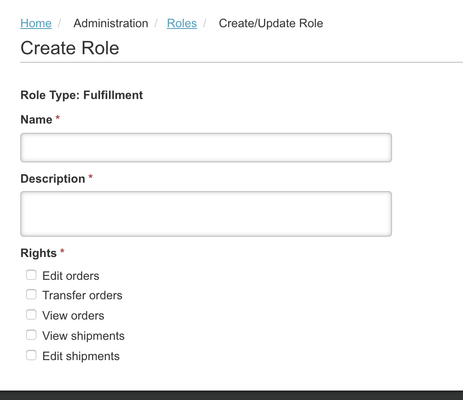
- Must be associated with the facility
- Is not associated with a Program because the rights are associated with the facility
- Order creation has historically been the capability of the facility that will fulfill the order
Fulfillment Rights in Orders
View Orders:
A user with this right can view all orders for the facilities that they are assigned.
Edit Orders:
A user with this right can create an order or convert to order for the facilities that they are assigned.
Transfer Orders:
A user with this right can retry the FTP transfer for External Fulfillment if the FTP transfer fails and the order status is Transfer Failed.
View Shipments:
A user with this right can view all shipments for the facilities that they are assigned.
Edit Shipments:
A user with this right can fulfill orders by editing or deleting shipments for the facilities that they are assigned. If a user is assigned the Edit shipments right, then they should also be assigned the View Shipments right.
Administration
These rights are generally 1:1 with some administrative or management capability such as Viewing a Facility List or Editing/Managing the Facility list. Rights of this type are granted to a user directly without any other structure such as Program or Facility applied.
This role type allows users rights for administrator functions that make updates system-wide.
- Is not associated with a Program or Facility because the rights are system-wide
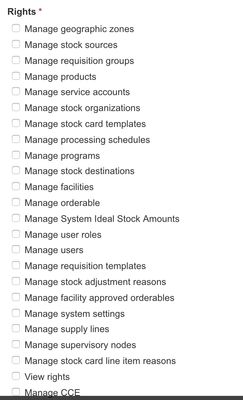
Administration rights in Stock Management
Manage stock card templates (STOCK_CARD_TEMPLATES_MANAGE):
Can configure the stock card templates by program
Manage stock destinations (STOCK_SOURCES_MANAGE and STOCK_DESTINATIONS_MANAGE):
Can configure the valid sources and destinations for all programs/facilities in the system.
Assumption: since this functionality is not in v3.1 scope, it may be removed or disabled before release.
Manage stock card line items reasons (STOCK_CARD_LINE_ITEM_REASONS_MANAGE):
Can configure the reasons, including which reasons map to which facilityTypes and programs, and which reasons will display in stock management and requsitions for user selection.
Reporting
Like Administration rights, Reporting rights are granted to a user 1:1 with some report that exists in the system. Here report is used to describe an analytical reporting of OpenLMIS configuration, functionality or supply chain operation and therefore having such a right as a user implies you have access to the specific report.
This role type allows users rights for requisition reports, or other system related reports.
- Is not associated with a Program or Facility because the rights are system-wide
- having the ability to view a report says nothing about the right's that the report has. i.e. a user granted the right to view a report on the functioning of the supply chain means to OpenLMIS that they can retrieve the report. It's up to the report's implementation to ensure that any other RBAC-based permissions, such as limiting a user to only a specific Program, are followed.
- Adding reports to and removing them from OpenLMIS is a common occurrence in many deployments. Because of this the functionality that adds a report to OpenLMIS is also responsible for adding a new right to view that report to the RBAC mechanism.
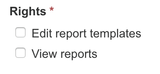
Setup Users
Setting up users requires gathering basic user information such as first and last name, email (if they have one), and what their role and access requirements are within the system.
Example:
- Username is required when creating a user and can be a combination of the user’s first and last name, or their job role, but should be something that the user can easily remember when logging in. The example below shows a District Storeroom Manager's user name as dsrmanager.
- First and Last name are required to create the user.
- Email address is optional for creating a user because there are scenarios where a user might not have access to email. Providing an email is a first step to allowing notifications for specific actions within the system.
- Login restricted is used to limit a user’s login by the administrator when needed. The default is set to No.
- Email verified is used to identify that the user has been set up and confirmed their setup via email. This is not required because there may be users that don’t have access to email. When a user is created the default is set to no, until they verify their email. (Need to update after OLMIS-4833 - Getting issue details... STATUS )
- The Active designation is used to mark a user as active or inactive, the default is set to No.
- The Home Facility assignment isn’t required when a user is first created, but supports the Supervisory Role and rights (as explained above) for the user’s home facility that is described below in the roles and rights section. The Home Facility assignment also determines the facility designated as "My Facility" in the user's process views. A user must be assigned either a Home Facility or facilities that they supervise through Supervisory Roles or they will not be able to access modules in OpenLMIS. Assigning a Home Facility to a user through the Administration screens is done by a drop-down of available facilities to assign.
- The Job Title field is optional and can be used to help identify the user.
- The Phone Number field is optional and can be edited by the user in their own profile.
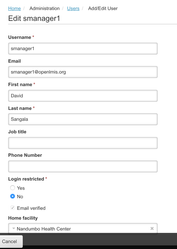
Setup Roles
There are four role types already defined in the system that you can utilize to create roles that fit your organization's needs (Supervision, Fulfillment, Reporting, and Administration). All required Roles must be set up to ensure a role exists to assign to a user. There are three steps to setting up roles within the predefined role types: select the role type, enter role details, and select rights specific to the role.
Example:
- The Role Name is required and is a shorthand description of the role type that you create. This is visible when assigning roles to a user.
- The Role Description is required and gives a more detailed description of the purpose for the role but is only visible in the role creation screens.
- A Role's rights are required. At least one selection within the list of rights must be selected to complete creation of a role.
| Role Name (required) | Description (required) | Rights (at least one selection is required) |
|---|---|---|
| Delivery Approver | Can manage proof of deliveries |
|
| District Storeroom Manager | Can view and approve requisitions |
|
| Storeroom Manager | Can create, view, and delete requisition |
|
Assign Roles
Once Users and Roles setup is complete, you must now assign roles to the users.
Example: Supervision Role assignment for a user
Home Facility Supervision Role
- A Home Facility role supports default navigation within the system and is designated in the User details (described in the User setup section above). Assigning a Home Facility enables the "My Facility" designation to default to show the facility you're assigned. Enabling Supervision for this Home Facility is the next step. Home Facility roles are assigned on a per program basis.
- When a user needs Supervision role access for their Home facility, this is assigned through a certain process by:
- First you must assign the Home Facility in the User details, as you are creating a user per the steps above in the User setup section.
- Second, you must determine which Programs to assign to the user based on the programs available at the facility. For example a facility may have three programs available for assignment, but the user only completes Supervision related functions with two out of the three available programs. If that is the case, this user would only be associated with two programs at that facility. Assigning the Programs to the Home Facility is done in the Assign Roles page.
- Last, you must select the Role that the user performs for each of those programs. Roles enable the type of rights that is associated with each Program. The Role assignments are described in more detail below and are separated by each tab in the User Role assignment page.
 For removal, if a user has an assigned Home Facility and associated Program and roles with the Home Facility, you are able to remove all associations by clicking the "x" in the Home Facility on the Edit User page. If you choose to proceed with this and select "Keep Roles", then the Home Facility is removed from any Supervision type roles that were assigned to that Home Facility, but the Roles are still assigned to the user. Keeping the roles may be helpful if a user's home facility has changed, but their roles at their home facility are the same. Or you may choose to "Remove all roles" which will remove the roles assigned, and you will need to assign new roles as needed.
Also, when the administrator navigates to the Roles for the edited user after selecting "Keep Roles" then the user's roles will show an error icon on the Roles page.
See the example below of a user with a missing home facility but there are roles assigned:
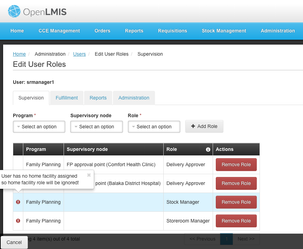
Supervision Role
- Most users will need to be assigned some type of Supervision role in order to use Requisitions, Stock Management, Orders, Fulfillment, or CCE.
- Supervision roles support the requisitioning process, and apply to facilities under a given supervisory node, as well as all facilities under nodes that are children of a given supervisory node. (Refer to the Parent and Child Supervisory Node diagram above in the setup Supervisory node section - Supervisory Node tree diagram)
- When a user is responsible for approvals in the requisition process they first must be associated with the Supervision Role type. The Supervision tab contains all necessary assignments to enable a user to have any Supervision role type rights.
- If you have determined that a user has Supervision role type rights for their Home Facility, and a Home Facility has been assigned to them, the Supervision tab is where you will assign the necessary roles. First you must select the Program. By selecting the Program, you are enabling the user to have approval type access to the selected Program at their Home Facility. The same Program can be associated more than once with a user, but must have a different role assigned.
- If a user is assigned a role for a Program and a Supervisory Node, and the Supervisory Node has child nodes, the assignment automatically gives them the same role at all the child nodes. An example is if the user is assigned the Family Planning Program, the SN1 Supervisory Node, and a role as Program Supervisor, then the user has the role of Program Supervisor at the child Supervisory Node SN1.1 without needing to make another assignment to the child node. A user can perform the same role for the same program at two or more supervisory nodes that do not have any parent-child node relationship.
This example below shows that the administrator has assigned the user dsrmanager with the following roles:
- The first role assignment line shows that for the Program Family Planning, they have the Supervisory Node FP approval sub point of the Balaka District Hospital. This Supervisory Node is a child node per the Supervisory Nodes created above. The role is the District Storeroom Manager.
- The second role assignment line shows that for the Essential Meds Program, they have the Supervisory Node EM approval point of the Balaka District Hospital. This Supervisory Node is the top node. The role is the District Storeroom Manager.
- The third role assignment line shows that for the Essential Meds Program, they have the Home Facility Supervision role of Storeroom Manager. This means that at the user's Home Facility, they have all rights associated with the Storeroom Manager for Essential Meds.
- The fourth role assignment line shows that for the Family Planning Program, they have the Supervisory Node FP approval point of the Comfort Health Clinic. This Supervisory node is the top node. The role is Program Supervisor, so the user has the rights of a Program Supervisor for the Family Planning program.
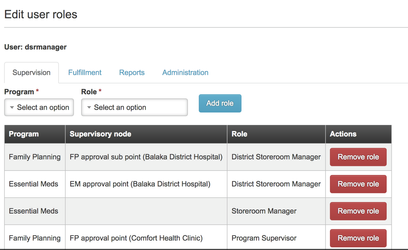
The assignments mean that the user dsrmanager can complete the following:
- When logging in, the user can view the Home, Requisitions and Reporting tabs.
- This user can create requisitions for their Home Facility for the Essential Meds Program.
- When requisitions are authorized for Family Planning at the Balaka District Hospital, this user is the first level to approve requisitions, and those requisitions are then routed to the top level Supervisory Node, FP1: FP approval point (Balaka District Hospital), for final approval.
- When requisitions are authorized for Essential Meds for the Balaka District Hospital, this user is the top level of approver for these requisitions.
- The user can view requisitions for the Family Planning and Essential Meds Programs for the Balaka District Hospital and the Comfort Health Clinic.
- When requisitions are authorized for Family Planning at the Comfort Health Clinic, this user is the top level of approver for these requisitions.
- The user can review Requisition reports.
Users with approval type responsibilities must be assigned the Program, Supervisory Node, and Role for the facilities they supervise as described here. If a user is having trouble viewing requisitions to approve, or viewing requisitions associated with their facility, then the assignments will need to be updated in their user roles section above.
Example Supervision Role assignment for Stock Management user
By default, there will be two roles set up: Stock Manager and Stock Viewer.
- Stock Manager role includes three rights: Adjust stock, Edit stock inventories and View stock cards.
- Stock Viewer role includes one right - View stock cards.
This example below shows the user srmanager2 has the Stock Manager role for their Home Facility.
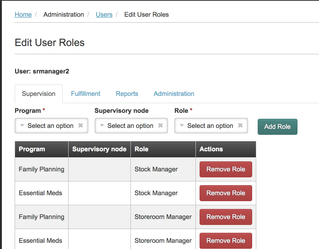
The assignment means that the user srmanager2 can complete the following:
- When the user logs in they are able to view the Home, Requisitions, and Stock Management tabs.
- The user can adjust stock, edit stock inventories, and view stock cards for only their Home Facility.
- The user can also create, view, and edit requisitions for only their Home Facility.
Example: Supervision Role assignment for Fulfillment user
Delivery Approver role includes two rights: View proofs of delivery and Manage proofs of delivery.
This example below shows the user divo1 has the Delivery Approver role for the Cuamba district approval point (EPI) Supervisory node.
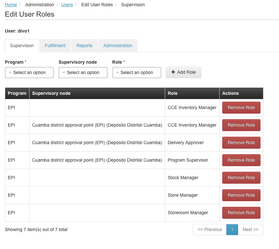
This Delivery Approver role assignment means that the user divo1 can complete the following:
- When the user logs in they are able to view the Orders menu and navigate to Manage Proofs of Delivery.
- The user can complete fulfillment actions such as Editing and Confirming Shipments for the Supply Line associated with the Cuamba district approval point (EPI) Supervisory node.
- The user can also view the status of shipments for the Supply Line associated with this Supervisory Node.
Example: Fulfillment Role assignment to a user
- Fulfillment Roles support the requisitioning process and apply to the facility type warehouse. You must select the warehouse and applicable role from the dropdowns.
- A user can be assigned one to many warehouses and roles within the Fulfillment role.
This example shows that the user wclerk1 has the Warehouse Clerk Role for the Ntcheu District Warehouse.
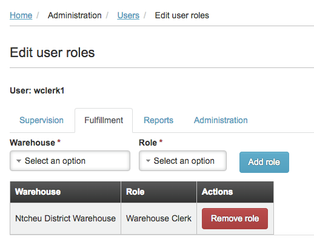
The assignment means that the user wclerk1 can complete the following:
- When logging in, the user can view the Home, and Orders tabs.
- This user can convert orders within the Orders > Convert to Order dropdown. They only can convert orders for the Ntcheu District Warehouse.
- This user will only see Orders, not Requisitions.
Example: Reporting Role assignment to a user
- Report Roles enable a user to view and print reports based on their role responsibilities. A Report Role can be created for different user roles such as a Requisition Reporting role, or a Fulfillment Reporting role.
This example shows that the user administrator has the Reporting Personnel role.
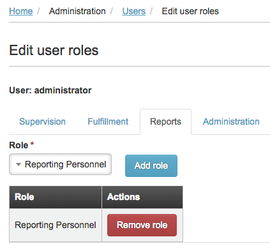
The assignment means that the user administrator can complete the following:
- When logging in, the user can view the Home, and Reporting tabs.
- This user can view and print all reports.
Example: Administration Role assignment to a user
- Administration roles are assigned at a global or system-wide level because an administrator is intended to manage the system. There can be multiple administration role types created that are used to differentiate administrator responsibilities, such as an administration role type for managing users, and a separate administration role type for managing facilities.
This example shows that the user admin has the System Administrator role.
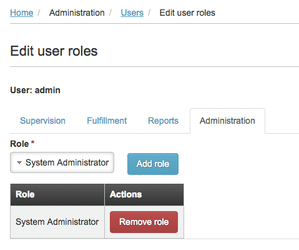
The assignment means that the user administrator can complete the following:
- When logging in, the user can view the Home and Administration tabs.
- This user has access to view and edit User details, view and edit User Roles, setup and edit the R&R Templates, and view facilities all within the Administration dropdown.
- Based on the above Report assignment, this same user also has access to Reporting.
The administrator can view all roles that exist in OpenLMIS and the number of users assigned to each role by going to Administration > Roles.
Email Notifications and Opting Out
OpenLMIS supports automated notifications for workflows related to requisition, fulfillment, stock management, and cold chain equipment. These notifications are informational or require the user to log in and take action. All of these notifications are automatically configured to notify a user if they have assigned supervisory type roles for each component. Users have the ability to opt-out of these notifications during the user setup process, or on their own through their user profile page.
Allowing notifications or opting out of notifications on the user page is shown below. By selecting the Allow notifications checkbox a user will receive all notifications, and if they unselect the checkbox then they will not receive notifications. The Allow Notifications checkbox is selected by default.
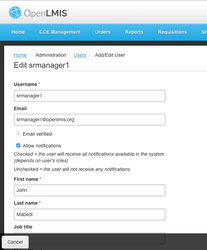
Regardless of their role assignment or opting out of notifications, all users will receive the reset password notification and emergency requisition notifications.
Example of notifications
- Requisition notifications are sent when there is a requisition status change.
- Fulfillment notifications are sent when there is an order status change.
- Stock management notifications are sent when there is low stock or a stockout event.
- CCE notifications are sent when there is an inventory status change that requires a user to take action.
- Reset Password notification is sent any time the user or the administrator changes a password or requests a new password.
Email Notifications related to Roles
Enabling automated email notifications for users is done by assigning the role and supervisory node. For Stock Management notifications, a Role must have the Edit stock inventories right. The admin must then assign the Role and the facility's Supervisory Node to the user, so that they will receive email notifications related to that facility. For Cold Chain Equipment notifications, a Role must have the Edit Cold Chain Equipment right. The admin must then assign the Role and the facility's Supervisory Node to the user, so that they will receive email notifications related to that facility.
Example of Stock Management assignment:
- A Program, Supervisory Node, and Role must be assigned to the user so that they will receive notifications for that facility.
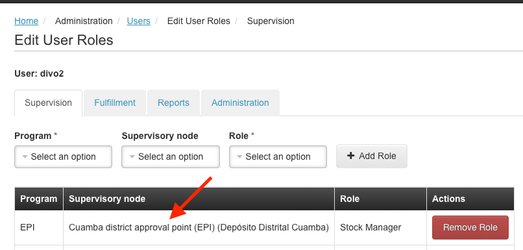
Example of CCE assignment:
- A Program, Supervisory Node, and Role must be assigned to the user so that they will receive notifications for that facility.
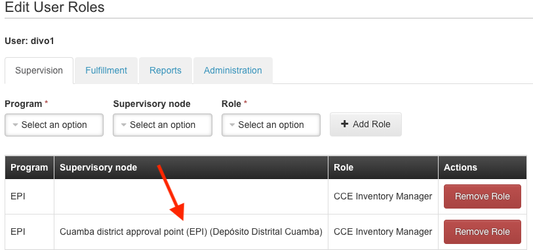
If a Supervisory Node is not assigned, then the user will not receive email notifications!
Now you have completed the set up of Users, Roles, Rights, and their assignments within OpenLMIS.
Setup Facility FTP
This page was created because of OLMIS-1319 - Getting issue details... STATUS and provide basic information about FTP settings for facility which will be used to establish an connection with the FTP server and send a CSV file related with created order.
FTP Properties
Each setting has to have the following properties:
- facilityId - this property is used to connect a facility with a setting. The facility can have only one setting.
- protocol - one of the following value is allowed: ftp, sftp, ftps.
- username - it will be used to establish a connection with the FTP server
- password - the same as username
- serverHost - address to the FTP server
- serverPort - port on which the FTP server is available
- remoteDirectory - set where CSV files should be stored on FTP server
- localDirectory - set where CSV files should be stored locally (the local file will be removed if transfer to the FTP server will end successfully)
- passiveMode - true if connection should use passive mode; otherwise false
public class FacilityFtpSetting {
  private UUID facilityId;
  private String protocol;
  private String username;
  private String password;
  private String serverHost;
  private Integer serverPort;
  private String removeDirectory;
  private String localDirectory;
  private boolean passiveMode;
}
Management
The fulfillment service should provide the following options:
- add - user should have ability to add a setting for the given facility. The facility must exist in the system when the setting are passed to the fulfillment service. Also if the setting already exist, the user should use another method.
- update - user should have ability to update existing setting for the given facility.
- retrieve - user should be able to see what are current setting for the given facility.
- delete - at any time a user should have ability to remove current setting.
Also if there is no setting for the given facility the fulfillment service should still save an order into database.
Open FTP connection
The fulfillment service uses Apache Camel to establish an connection with the FTP server set in setting. When an order is saved firstly it retrieves a setting from the database by supplyingFacilityId property from the Order class. If there is no setting the service will save the order in database and finish the work. If there is setting for the given facility the fulfillment service will store a generated CSV file locally (in directory set in setting), will try to send the file into the FTP server. If transfer ends with success the local file will be removed, otherwise the file will be still present in the folder and a user would have ability to manually transfer the file to the FTP server.
Setup Requisition & Report Template by program and facility type
Initial Setup of R&R Template
The R&R form is the Requisition & Report form that is used by storeroom managers to input stock information and request new stock. The R&R Template is the Requisition & Report template an administrator or implementer can configure that modifies the properties of the R&R form. R&R forms can be customized for each program and facility type, and there must be at least one requisition template per program. The requisition template customization includes defining which fields or data elements will be entered by the user, the display names for all fields, how certain calculations and validations are performed, the source of data for the columns, and the overall layout of the template.
Regular vs Emergency Requisition
A regular requisition is the standard type of requisition that users will utilize to complete their requisition workflow. In order to be fulfilled, the regular requisition must be completed during the normal processing schedule. When logging in to start an R&R form, regular will be the default selection for the user.
An emergency requisition is a type of requisition that is not limited to one per processing schedule. A user can enter many emergency requisitions within a processing period. For example, if a user's requisition has already been approved and is in the last stages of the requisition workflow, they can enter an emergency to request additional stock. The requisition template for an emergency requisition has a limited amount of columns available and can not be changed using the process detailed below.
User Input vs Stock-Based
A regular requisition is considered a Stock-based requisition when the "Enable Stock on Hand to populate from stock cards" is selected, and the source for column's data has been changed from user input to stock cards. A stock-based requisition also requires the program to use Stock Management so that the data is populated from the program's stock cards.
Column Definitions
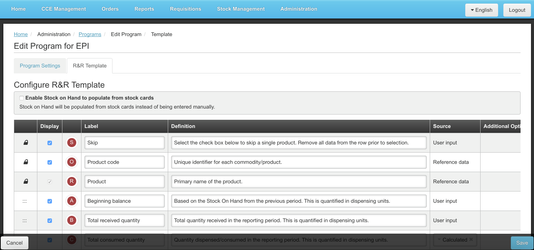
Icons | Explanation |
|---|---|
| Lock icon: When these fields are selected to display, they must be in the order that they appear on this page as the first, second, and third columns to define in the requisition template. They cannot be rearranged to appear in a different order. |
| This icon identifies any template column that can be reordered to appear in the R&R form. Reordering columns can be done by clicking on a row and moving it up or down. This will change the order that the columns are displayed in the R&Rs. |
| Display column: When the display box is checked, then the field will show in the R&R. When it is unchecked, it will not display. There are template validations that check whether required fields are displayed before a requisition template can be saved. |
| Letter icons: The letters inside the red circles are tags to identify each column and align to the Template Calculations. These icons aren't visible to general users, but are provided to help administrators follow how related columns are calculated. |
| Enable Stock on Hand to populate from stock cards checkbox is used when Stock Management service is active. Once this checkbox is selected the requisition template columns for Beginning Balance, Total Received Quantity, Total Consumed Quantity, Total Losses & Adjustments, and Total Stockout Days are disabled and will no longer display on the requisition form. The Stock on Hand will be populated by stock cards and is uneditable by the user completing the requisition form. |
| Label column: The text in this field is the display name for this column in the R&R and is a free text field. All Labels can be edited to match a specific program. A suggestion is to abbreviate the labels so the R&R form appears more compact for the user. |
| Definition column: The text in this field should explain to the user what the Label is and how it is calculated or defined to assist the person creating or reviewing the R&R. When the user is completing the R&R form, they can hover over this column label to better understand what it's used for in the R&R form. This is helpful if the label has been abbreviated to shorten the R&R form. |
| Source column: The source is either Reference Data, User Input, Calculated, or Stock Cards.
|
| Additional Options | Additional Options: These are additional options associated with the Source column. Tags, hiding skipped line items, and new patient count are some examples of additional options configurable in this template column. |
Tags
| Tags are only available to select if :
|


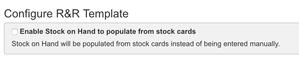

Configuring a new Requisition Template by Program
OpenLMIS supports multiple requisition templates per program, per facility type. This configuration is helpful when a health facility may be required to report more data than a district or regional store. Once a new program is created and the facilities are associated with the new program, then the requisition template is ready to configure.
The new requisition template must include the following fields:
- The Requisition Template Name should help easily identify the use of the requisition template and must be unique per template.
- The Program is the program that supports the requisition template and only one program can be selected.
- The Facility Type identifies the facility types that will support the requisition template. Any facility type can be used, but the facility types available to select are dependent on the selected program.
- The Facility Type is not required when adding a new requisition template. If a facility type has not been selected, then the requisition template will not be used for any facilities. This is the UI bug: OLMIS-5848 - Getting issue details... STATUS
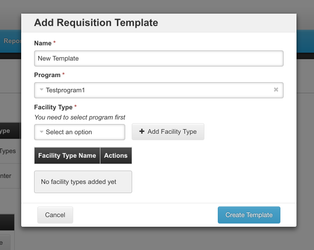
After clicking Create Template, the new requisition template is populated with all available requisition template columns by default.
Before editing column descriptions and the order of each column in the requisition template, you will need to understand the dependencies and calculations of each field that is detailed below.
R&R Requisition Template Column Dependencies and Calculations (in progress for 3.5 updates)
Within the R&R template there are fields that have system generated calculations or options to change the source. Understanding how these calculations affect the workflow for each R&R template will assist in determining which sources should be used for each program.
- The Template Save Validations column below provides details on which combinations of columns are required to display before the system will allow saving a requisition template.
- The Regular Requisition Form Validations column below describes data input validations or restrictions that a user would experience as they are completing the requisition workflow.
- Emergency Requisition Form Validations column below describes data input validations and columns required to display in an emergency requisition. The system does not allow editing of an emergency requisition template columns.
- Stock-Based Requisition Form Validations column below describes data input validations and columns required to display in a stock-based requisition.
*Are required fields, however implementers can choose which are user input or calculated. This requirement began at version 3.2.0.
Field Label | Letter Icon | Business Definition | Calculation (Columns are identified by letter icons) | Source/Options | Template Save Validations | Allows tags | Regular Requisition Form Validations | Emergency Requisition Form Validations | Stock- Based Requisition Form Validations | Additional Options |
|---|---|---|---|---|---|---|---|---|---|---|
| Skip | S | Allows user to skip R&R for a product line item and hide skipped line items in the R&R form | Not Applicable | Not Applicable |
| NO |
| Not Applicable |
|
|
| Product Code | O | Unique identifier for each commodity/product. | Not Applicable | Reference Data |
| NO | ||||
| Product | R* | Primary name of the product. | Not Applicable | Reference Data |
| NO | ||||
| Beginning Balance | A | Based on the Stock On Hand from the previous period. This is quantified in dispensing units. | = SOH from the previous period's requisition | System Generated |
| NO |
|
|
| |
| Total Received Quantity | B* | Total quantity received in the reporting period. This is quantified in dispensing units. | User Input |
| YES |
|
|
| ||
| Total Consumed Quantity | C* | Quantity dispensed/consumed in the reporting period. This is quantified in dispensing units. | If calculated, C = A + B +/- D - E | User Input or Calculated |
| YES |
|
|
| |
| Total Losses & Adjustments | D* | All kind of losses/adjustments made at the facility. | User Input (Source is list of Adjustment Reasons configured in Stock Management) |
| NO |
|
|
| ||
| Stock on Hand | E* | Physical count of stock on hand, as of the requisition's processing period end date. This is quantified in dispensing units. | A + B (+/-) D - C | Calculated, User Input, or Stock Cards |
| NO |
| Column not available |
| |
| Calculated Order Quantity | I | H - E | Calculated |
| NO |
| Column not available | Updates to this column validation must be added for 3.5 Sebastian Brudziński | ||
| Requested quantity | J | Requested override of calculated order quantity. This is quantified in dispensing units. | User input |
| NO |
|
|
| ||
| Requested Quantity Explanation | W | Explanation of the request for a quantity other than the calculated order quantity. | User Input |
| NO |
|
| |||
| Number of New Patients | F | Number of New patients data | User Input |
| NO |
| Column not available | |||
| Approved Quantity | K | Final approved quantity. This is quantified in dispensing units. | User Input |
| NO |
|
|
| ||
| Remarks | L | Any additional remarks | User Input |
| NO |
|
|
| ||
| Total | Y | Total of beginning balance and quantity received. | A + B | Calculated |
| NO | Column not available |
| ||
| Total Stock out Days | X | Total number of days facility was out of stock. | User Input or Stock Cards |
| NO |
| Column not available |
| ||
| Adjusted Consumption | N | Total consumed quantity after adjusting for stockout days. Quantified in dispensing units. | Roundup(C * (M * 30) / ((M * 30) - X ))) M = Number of periods to average (this is identified in the additional options column for P) | Calculated |
| NO | Column not available | |||
| Averaged Consumption | P | Average consumption over a specified number of periods/months. Quantified in dispensing units. | AMC (P) = (Nt0 + Nt-1 + Nt-2) / 3 Last "t" periods averaged (includes the reporting period being input) | Calculated or Stock Cards |
| NO |
| Updates to this column validation must be added for 3.5 Sebastian Brudziński | Number. of periods to average | |
| Maximum Stock Quantity | H | Maximum stock calculated based on consumption and max stock amounts. Quantified in dispensing units. | P * MaxPeriodStock | Calculated |
| NO | Column not available |
| ||
| Price Per Pack | T | Price per pack. Will be blank if price is not defined. | ReferenceData |
| NO | Column not available |
| |||
| Packs to Ship | V | Total packs to ship based on pack size and applying rounding rules | J / U | Calculated |
| NO |
| Column not available |
| |
| Total Cost | Q | Total cost of the product based on quantity requested. Will be blank if price is not defined. | V * T | Calculated |
| NO |
|
| ||
| Dispensing Unit | U | Dispensing unit for this product. | ReferenceData |
| NO |
|
| |||
| Ideal Stock Amount | G | The Ideal Stock Amount is the target quantity for a specific commodity type, facility, and period. | ReferenceData |
| NO |
| ||||
| Additional Quantity Required | Z | Additional quantity needed for New Patients or other factors such as seasonality Adjusted Consumption (N)+ Additional Quantity Required (Z) |
|
Manage/Edit R&R Template
Once a template has been created and is in use, it can still be modified and updated to better support the programs and users. There are some important considerations you should know before making changes to the template:
- Edits to R&R Templates: Any changes to an existing template will take effect on the next requisition. If a requisition is currently in a state of initiation, approval, or submission, then it will not reflect any updates done by an administrator to the template until the next requisition is initiated.
- Creating a new requisition template through the Administration menu is not available in OpenLMIS version 3.3, but the administrator can edit existing templates and associate facility types to those templates as often as needed. Also, the Emergency requisition template is not configurable through the Administration menu because it uses a preset template configuration for ease of data entry, and doesn't require all the reporting columns that must be in a regular requisition template. Again, any changes to the requisition templates take effect on the next requisition.
- Multiple requisition templates: There can be multiple requisition templates per program, per facility type. This configuration is helpful when a lower level facility type uses a requisition template (named A) that requires all reporting fields, while a district facility type may only need the minimal set of fields in their requisition template (named B) for the same program.
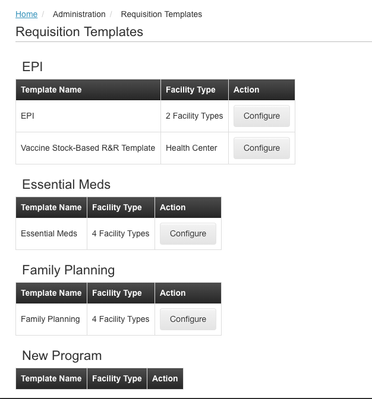
Configuring Requisition to Hide Skipped Products
The implementer or administrator has the ability to allow hiding products that have been skipped in requisitions. This is a helpful configuration that shortens a requisition form when the same products are frequently skipped.
In the requisition template, in the Skip column, select from the Additional Options dropdown "Hide Skipped Line items".
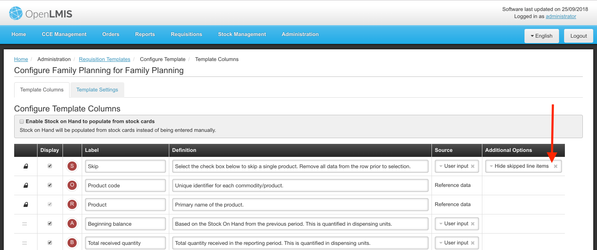
Once skipped line items has been configured in the requisition template, the user will no longer see skipped products in their requisition form. They can choose to add products that are skipped back into the requisition form if necessary.
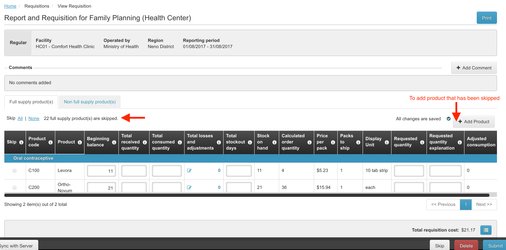
Setup Order File
Order File format
UI Fields | Displayed in PDF or Orders UI | Labels in Order File | Source |
|---|---|---|---|
| Order Number/Code | PDF, UI | Order No | Order Number Prefix (if any) + Program Code (if set to True) + R&R type suffix (if set to True) |
| Order Status | UI | ||
| Program | UI | ||
| Date Created | UI | ||
| Date Last Updated | UI | ||
| Last Updater | UI | ||
| Requesting Facility Name | PDF, UI | ||
| Requesting Facility Type | PDF, UI | ||
| Requesting Facility Code | PDF, UI | ||
| Order Emergency Flag | UI | ||
| Product Code | PDF, UI | Product Code | Product Code |
| Description | PDF, UI | Product Name | |
| Ordered Quantity | PDF, UI | Ordered Quantity | 1 is the Approved Quantity (ApprovedOrderQuantity) and 2 the Requested/CalculatedOrderQuanity (OrderedQuantity), Displayed in Packs |
| Dispensing Units | PDF, UI | Dispensing Units |
Order file Name
Order file is generate with name ‘O’ + order number.csv
Validations
- One order file generated per Requisition
- Quantity Ordered = Packs to Ship
- Any product with Quantity Ordered as zero is excluded from the file
- If Quantity Ordered for all product in an order is zero no file is generated
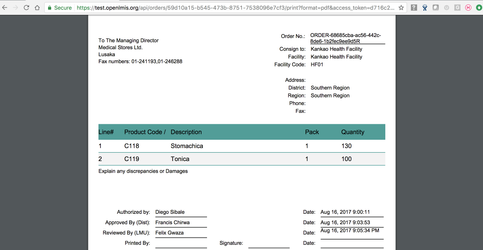
Setup CCE Catalog
In order to use the CCE Management features in OpenLMIS, you will need to first set up the CCE Catalog. The catalog is a list of CCE devices stored in the back end, along with other relevant information about the equipment. The catalog provides a list of devices that a program user can select from when they are adding specific device information to a facility. The catalog is created in the system through uploading a CSV. This CSV must be in the correct format, otherwise the system will not accept it as a valid catalog. More information on configuring the CSV CCE Catalog is available in the "Configufin Cold Chain Equipment catalog" section in Step 3: Configuration via CSV uploads.
Catalog Template Download
The catalog template CSV is already loaded into the system as the default CCE catalog. You will need to download the template so that you can add your own devices to the CSV and upload them to be visible to users in the system.
To download the catalog template CSV, go to CCE Management > CCE Catalog. Click "Download current catalog." This will download a CSV file that can be used as a template for your CCE Catalog. If you already have an Excel or CSV file of a CCE Catalog that you'd like to use, you must transfer the data into the OpenLMIS CCE Catalog template. You must retain the same column headers from the downloaded catalog template. If you delete or change any column headers in the template, you will not be able to upload the CSV as your new CCE Catalog.
Setup Google Analytics tracking
OpenLMIS integrates with Google Analytics in order to provide insights into platform traffic and user behaviour. In order to benefit from this integration, start with creating a Google Analytics account here: https://analytics.google.com/analytics/web. Once that's done, you should find your Google Analytics tracking code. Go to Admin settings on Google Analytics and find section called "Tracking Info". This section will show your unique Tracking ID as shown below.
The Tracking ID needs to be provided to your UI project (equivalent of https://github.com/OpenLMIS/openlmis-reference-ui) during build time. It can be achieved in two ways:
- Setting the ANALYTICS_TRACKING_ID property to your Tracking ID in your config.json file
- Setting environment variable ANALYTICS_TRACKING_ID to your Tracking ID during your UI build
Once built and deployed to your server, the tracking should be in place. and you should be able to see the metrics in the Google Analytics account you created. For any issues with Google Analytics, you can check their help center: https://support.google.com/analytics
In addition to the regular metrics in place, the OpenLMIS instance will also send button click events to the Google Analytics. You can also implement and send your own events. The UI in the offline mode will collect the page views and events and send them as soon as the instance is back online.
Step 3: Configuration via CSV uploads
Configuring Cold Chain Equipment catalog (if CCE service is used)
How to fill in CSV files to import CCE data:
You can find CSV templates, containing only headers, to upload CCE data here. In order to create Catalog Item with only mandatory fields use mandatoryFields.csv. Template with all fields is allFields.csv. Of course you can create your own template that contains mandatory fields and some of the non-mandatory fields. The possible values for fields are:
- From PQS catalog (values are not case-sensitive):
- any of: "1", "true", "t", "y"
- any of: "0", "false", "f", "n"
- PQS equipment code: any text
- Type: any text
- Model: any text
- Manufacturer: any text
- Energy Source:
ELECTRIC
SOLARGASOLINENOT_APPLICABLE
Date of prequal: 4-digit year
- Storage Temperature: values from MINUS20 to MINUS1, ZERO, from PLUS1 to PLUS4
- Max operating temp (degrees C): any number
- Min operating temp (degrees C): any number
- Energy consumption (NA for solar): any text
- Holdover time (hours): any number
- Dimensions: triple in format: "x, y, z", where x, y and z are any number for Width, Depth, Height respectively
- Visible in catalog (values are not case-sensitive):
- any of: "1", "true", "t", "y"
- any of: "0", "false", "f", "n"
For all fields you need to keep rules. Mandatory fields are bolded.
There will need to be an identifier for each item. If there is a PQS code, use that; otherwise, use a combination of make type and model as the unique identifier.
Step 4: Verify your configuration
OpenLMIS includes a set of four reports that will help you verify the system has configured correctly. The reports are listed below. You must be logged in with a user account that has been assigned a role which includes the rights to run each of these reports.
1. Facilities Missing a Create Requisition Role: This report will identify any facility where a program is operating but there is no active verified user who has been assigned a role that includes the rights to create requisitions for that program. The role must be assigned to a user for whom the facility is their home facility, or to a user has been assigned the role at a supervisory node over the facility. If no user holds this role, it will not be possible for the facility to create and submit requisitions for the program.
2. Facilities Missing an Authorize Requisition Role: This report will identify any facilities where a program is operating but there is no active verified user who has been assigned a role that includes the rights to authorize requisitions for that program. The role must be assigned to a user for whom the facility is their home facility, or to a user has been assigned the role at a supervisory node over the facility. If no user holds this role, it will not be possible for the facility's requisitions for the given program to be authorized, and then advance for review and approval.
3. Facilities Missing an Approve Requisition Role: This report will identify any facilities where a program is operating but there is no active verified user who has been assigned a role that includes the rights to approve requisitions for that program. The role must be assigned to a user for whom the facility is their home facility, or to a user has been assigned the role at a supervisory node over the facility. If no user holds this role, it will not be possible for the facility's requisitions for the given program to be approved, and eventually get released as an order.
Step 5: Customizations
Configuring message strings
Translations: Transifex
Messages
Messages are translateable pieces of content that are a part of the OpenLMIS-UI. The best way to update a message is by configuring the OpenLMIS-UI to use your implementation's Transifex settings and editing the message directly in Transifex. What Transifex does is replace a message key, which is defined in the UI, with a human readable message. This is how the OpenLMIS-UI supports multiple languages.
See the example below:
<!-- HTML similar to this, will be updated by Transifex once the OpenLMIS-UI is built and run in a browser --> <p>{{ 'example.instructions' | message }}</p> <!-- The above message will be displayed to a person using the OpenLMIS-UI as: --> <p>These are some instructions</p>
The strategy in the OpenLMIS-UI is to not reuse specific message keys, and let the tools in Transifex group messages that are the same together into a single spot for translation. This allows an implementer to further customize small messages such as 'Search' to 'Search Facilities' if the needs of their implementation require more specificity.
If there are large message string changes, it is possible for an implementer to replace the messages_en.json file, and make the changes that are needed. This is possible as a last resort but not recommended.
Configuring Time Zones
A timezone may optionally be associated with the TIME_ZONE_ID property in a distribution's .env configuration file.
The default implementation generates 8 digit, base36 numbers. It can be customized using an extension point:
Create an extension. See an example here. Include fulfillment service with version >6.0.1 as a dependency in build.gradle:
dependencies {
	compile "org.springframework.boot:spring-boot-starter-web"
	compile "org.openlmis:openlmis-fulfillment:6.0.1"
}
Within the extension module, create a bean that implements OrderCodeGenerator interface. Annotate it with some id, e.g. YourCustomizedCodeGenerator
Create a docker image that holds your implementation's extensions. See this example.
Add your extension as a dependency in build.gradle and configure it in extensions.properties like so:
OrderCodeGenerator=YourCustomizedCodeGenerator
Note: The value has to match bean id.
- Follow this section to configure your distribution to load the extensions.
Configure Proof of Delivery Report
OpenLMIS provide a means for a customer to use their own template for the Proof of Delivery Report. The template customization includes use of all data elements that are available while preparing the template with Jaspersoft Studio. For detailed instruction about how to create/modify Reports, see the Jaspersoft Studio user guide. To add fields you need to register them from sql query. You can use tables from schemas fulfillment and referencedata. There is an assumption that both schemas are in the same database. Changing the template also requires using software development tools like Curl and/or Postman. If you are not familiar with these tools, you may need to request support from a developer to upload the new report template into OpenLMIS.
Available Parameters to use in your .jrxml template that are defined by OpenLMIS fulfillment service are: format (e.g. "pdf"), REPORT_LOCALE (current locale), REPORT_RESOURCE_BUNDLE (resource bundle for locale with messages), subreport_dir (points to reports folder in fulfillment service resources), image_dir (points to folder with images in fulfillment service resources), pod_id.
Available Resources can be found in OpenLMIS Github repository.
The default Proof of Delivery Report built into OpenLMIS uses podPrint.jrxml that can be found in Github repository. To change it to a custom template, call "multipart/form-data" POST request for endpoint /api/reports/templates/fulfillment with the following in the body:
- key: "file" value: chosen template
- key: "name" value: "Print POD"
The access token will be necessary for user with right REPORT_TEMPLATES_EDIT.
Example request using curl: curl -i -X POST -F "file=@/some/path/podPrint.jrxml" -F "name=Print POD" https://test.openlmis.org/api/reports/templates/fulfillment?access_token=64d046f-c4b5-49fe-842e-5a5b049699f5
Example request using Postman:
Some reports contain static images, such as a logo to appear at the top. In order to add or customize an image in a report, a user has to upload it by making a POST request to the /api/reports/images endpoint with the following in the body:
- key: "file" value: the image in jpg, png or gif format
- key: "name" value: the image name
Example request using Postman:
After the image has been uploaded, you can reference it in report's template by adding a parameter with its name. The type has to be java.awt.Image and isForPrompting set to false.
<parameter name="example-image" class="java.awt.Image" isForPrompting="false"/>
The image element (generated by JasperReports Designer) looks like this:
<image>
  <reportElement x="20" y="10" width="130" height="60" uuid="50f2c4e9-d19d-4264-887d-0645674af6d1"/>
  <imageExpression>
    <![CDATA[ $P{example-image} ]]>
  </imageExpression>
</image>
For instructions on how to customize report's template, see previous section.
Note: When uploading the template, use the endpoint from the openlmis-report service: /api/reports/templates/common
It is possible to define custom Jasper reports and get them to show up on the UI by uploading Jasper source files (.jrxml) to the API. In order to do so:
- Design a Jasper Report using a SQL dataset. You can use all the database schemas that exist in OpenLMIS and the data source will be automatically populated on runtime.
- If you want a parameter to show up as input or a dropdown, you need to provide a couple of properties. In order to do so in Jasper Designer, open up parameter's details, select Advanced tab and edit Properties:
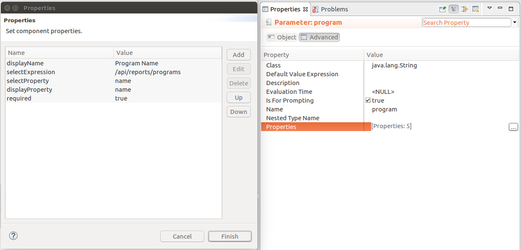
Required properties:
- displayName: Parameter's display name. It will be displayed as a label above the input.
- required: Whether the parameter is required or optional. Values: true, false
Optional properties:
- defaultValue: The default value of the parameter.
- selectExpression: If you want the parameter to be a dropdown, specify which endpoint will populate it. Example: /api/reports/programs
- selectProperty: Which property should be used as a value in the dropdown. It will be your parameter's value. Example: id
- displayProperty: Which property should be used as a label of each item in a dropdown. Example: name
- options: Alternatively, you can specify a comma-separated set of options for a dropdown: Example: Stocked out,Understocked,Overstocked
- Upload your report to the API by making a multipart/form-data POST request to /api/reports/templates/common:
- "file": JRXML source file
- "name": Your report's name. It will be displayed in Reports → View Reports screen
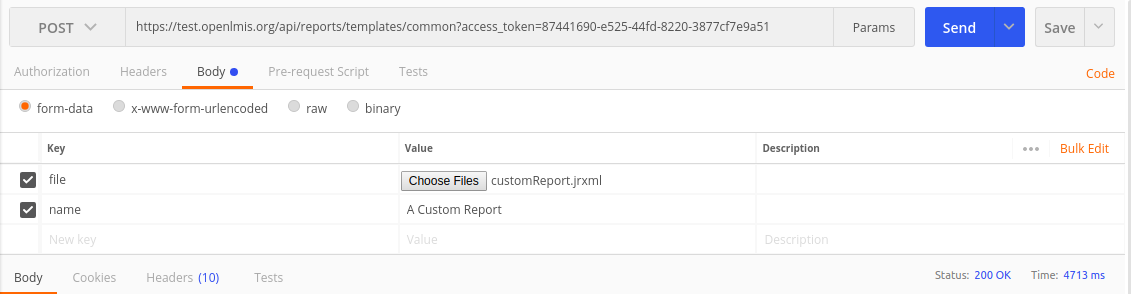
An access token with REPORT_TEMPLATES_EDIT right is required to make that request.
- Your report should show up under Reports → View Reports tab:
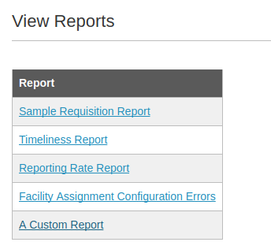
Manage Service Accounts
OpenLMIS allows for integration with external partners by using service accounts that are managed by the administrator. The administrator must generate a new API Key by clicking Add, and the system will automatically generate a key to provide to the external partner manually. API Keys do not expire, and require the administrator to remove them by clicking Delete. The Service Accounts table will display all API Keys, with the most recent at the top of the table.
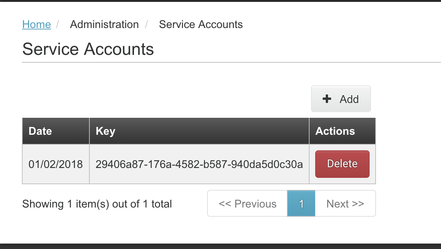
Reporting Configuration
The reporting platform will come with a default configuration and needs to be configured independently to fit the needs of the implementation. This often happens after the OpenLMIS system has been configured for a specific implementation. This document is a work in progress and will continuously change as we develop the reporting platform.
Superset
Superset is the front-end visualization layer in the reporting platform. It queries the data storage system, Druid or RDBMS, for data and presents it in dashboards. This section of the guide focuses on configuring Superset for your implementation, including a frequently asked questions area for identifying where to perform a specific task.
Terminology
- Datasource - the Druid data source that contains the data model, accessible via Sources → Druid Datasources. Note that Superset also supports Postgres (or other SQL) backends via Sources → Tables
- Druid Cluster - a higher-level data source. Currently the only cluster is Ona Data Warehouse
- Dimension - a field on each record defined in the data source that stores a particular data element, like a column in a SQL database. Primarily used for Group Bys and for generating metrics. Viewable via the List Druid Column tab in the data source editor
- Metric - a calculation performed on a dimension in the data source. Viewable via the List Druid Metric tab in the data source editor. By default, Superset will create a COUNT() metric which returns the count of all records in the data source, there are a couple of ways to create new metrics:
- In the List Druid Column tab of the data source editor, open the column editor and select any number of the checkboxes Count Distinct, Sum, Min, Max. This will create a metric off of that dimension that will produce the expected output (e.g. a distinct count of values in that dimension)
- In the List Druid Metric tab of the data source editor, click the plus sign. Specify a data source, a metric name, verbose name, and JSON query that references metrics and dimensions available in the data source. More info on this in the General Configuration section below
- Chart - a visualization in Superset. Some of the key parts are:
- Data source - see above
- Visualization type - things like Line Chart, Bar Chart, Table, Map. Superset has an extensive list already, but please document new visualizations that we should add on our GitHub (PLD review)
- Date range - date range over which to query. You can also specify a granularity which is particularly useful on chart visualizations to keep the lines smoother
- Group By (optional but very frequently used) - dimension(s) to group the metric results by (e.g. show a visit count per facility
- Metric - metric(s) to display in the visualization
- Options - varies by type of visualization, but gives some control over how the results are displayed as well as whether things like legends appear
- Filters and Result Filters - these let you filter out certain dimension values (e.g. null) or results (e.g. metric values > 100) at the Chart-level, so that those filters do not need to be applied at the dashboard-level
- Note you can run and re-run your query by clicking the Run Query button in the top right
- Note the Save button there also
- Dashboard - a collection of Charts on a single webpage. Most dashboards should include a Filter Chart that lets the consumer restrict the results to a specific dimension, e.g. to a particular region
- User - the unique login account which contains a username, password, and user roles. Note an administrator cannot currently change the password after initially creating the user
- User role - a collection of security points that define the features and data sources in Superset that a particular user can access
Filtering
Filters can be applied in two places:
- On a dashboard. This requires you to build a Chart of the type Filter and add it to the dashboard. You can specify the particular dimensions on which you want to be able to filter on the entire dashboard. The filter can also adjust the date range for all Charts in the dashboard.
- In a Chart (see Filters and Result Filters above). You can apply filters on dimensions and metric values for a single Chart, for instance to create a Chart that only returns results that are above a predetermined risk threshold.
Security
Security --> List Users shows the list of users (both active and inactive). To create a new user, click the plus sign in the top right and fill out the required fields. You're only allowed to create one user per email address entered. Superset recommends deactivating users instead of deleting them. Note an administrator cannot currently change the password after initially creating the user in Superset's UI. This is logged here: https://github.com/apache/incubator-superset/issues/4518#issuecomment-369900509 . Instead, you need to do it in the fabmanager cli. To do this:
- SSH into the server where Superset is being hosted
- type this at the command line: fabmanager reset-password admin --app superset
Users can be assigned to multiple roles, so it's recommended to have a few types of users (admin, power user = Alpha, basic user = Gamma) and match those with data source-specific roles.
Security --> List User Roles shows the list of user roles available. The user role controls the features and data sources a particular user can access. Some useful security points:
- datasource access on [data cluster] [data source] --> gives access to a specific data source within a cluster
- metric access on [data cluster] [data source] [metric] --> gives access to a specific metric that has been marked restricted
- Note you also need to mark the metric as "restricted" in the metric editor
Check out Apache's documentation here for more info: https://superset.incubator.apache.org/security.html
Known Metrics & Limitations
See Druid documentation here for information on writing custom metrics / JSON queries.
If you're using a RDBMS backend, you can write custom SQL queries via SQL Lab --> SQL Editor.
Tips & Tricks
- It's useful to have a spare Chart that you use specifically for testing, I usually preface it with my initials and call it something like CSC_testing so anyone else looking at Superset knows not to add it to a dashboard. That way, you avoid the risk of having someone mistakenly deploy something not PRD-ready.
- To generate a .csv dump of all of the data in your data source, create a Chart with visualization type "Table" and add every dimension available in the Group By field. If there are metrics that you want to see in this as well, include them. Run the query. Depending upon the size of your data set, this may take a little bit. Then, in the top right, click the .csv button to export the resulting table to .csv. This is really helpful for data validation.
- You can generate an iframe for a particular Chart by clicking the </> icon in the top right of the Chart Editor and embed that Chart in a webpage.
External Documentation
Superset site: https://superset.incubator.apache.org/index.html
Gitter: https://gitter.im/airbnb/superset
GitHub: https://github.com/apache/incubator-superset/issues
How to Configure Superset
This section provides a quick reference on how to configure Superset in a simple, consumable quick view list.
Create a user
- Security → List Users
- Click the plus sign (+) in the top right
- Fill out the required fields
- Note: you can only create one user per email address
- Save
- Note: once you create a user, only that user can edit their password. Administrators cannot reset passwords in Superset’s UI currently.
Create a user role
- Security → List Roles
- Specify the security points
Access your datasource
- Druid
- Sources → Druid Datasources
- RDBMS
- Sources → Tables
View and edit columns - incl. column labels
- Within each datasource (see #3 above), click List Columns
- Specify whether you want the column to be available for Grouping By within queries or Filtering within queries/dashboards
- To edit a column’s name
- Click the Edit Record button to the left of the column’s name
- Druid columns
- Lst this in the Dimension Spec Json field:
- {
- "type" : "default",
- "dimension" : "actual_dimension_name",
- "outputName": "Desired Name",
- "outputType": "STRING"
- }
- RDBMS columns
- Fill in the “Verbose Name” field
Create basic metrics
- Within each datasource (see #3 above), click List Columns
- For any relevant column, click the checkboxes for Count Distinct, Sum, Min, or Max. This will auto-generate metrics on the List Druid Metrics tab. Currently, Sum, Min, and Max are selected by default for any numeric-type column
Create complex metrics
- Within each datasource (see #3 above), click List Metrics
- Druid
- Asdf
- RDBMS - option 1
- Click the plus sign (+) to the top left
- Fill in the following important fields when appropriate:
- Name (Metric field) (required)
- Description (optional)
- Verbose Name (optional)
- Type (required)
- SQL expression (required)
- This is a simple SQL expression between two or more columns, it supports basic aggregation functions like AVG, subtraction, division. It does not require SELECT or FROM clauses, and does not support more advanced clauses like WHERE, OVER, or setting variables.
- Click Save
- RDBMS - option 2
- SQL Lab → SQL Editor
- Write a full SQL expression, including SELECT, FROM, WHERE, etc. clauses.
- Run Query shows your output in tabular format
- When your query is complete, click the Visualize button and:
- Specify your time column
- Specify any columns that should be treated as dimensions
- Specify any aggregate functions that should be applied
- Select a Chart Type (this can be changed once you’re within the Chart Editor)
- Specify a Datasource Name
- Note this means any Charts built off of this new datasource will not be affected by filters applied to the “parent” datasource (where you’re selecting from in the SQL query)
- See the Create/edit Charts section (#7) below
Create/edit Charts
- Click the Charts button at the top
- Click the Edit record button to the left of the chart name to view a description, owners, associated dashboards, and parameters JSON (including default filters) for the Chart
- Click the Chart name to open the Chart Editor. Note that each visualization type has its own parameters, but we will cover the essentials here:
- Edit Visualization Type
- Edit time granularity and time range (Since and Until)
- Specify which metrics to display
- Specify which dimensions/columns to Group By
- Edit Number format - this supports free text entries, so typing “100%” will convert the results into percentages
- Apply any default filters (based on dimensions) or result filters (based on metric values)
Create/edit a dashboard
- Click Dashboards at the top
- To create a dashboard
- Click the plus sign (+) in the top right
- Specify a title and owners
- Your dashboard is now available in the Dashboards menu, follow steps 8c below
- To edit a dashboard
- Click the Edit record button to the left of the dashboard name to view associated charts, owners, CSS and JSON metadata for the dashboard.
- Click on the dashboard’s name to open it
- Click the Edit Dashboard button in the top right to adjust positioning of charts, to add/remove charts, or to set a refresh schedule (found under the Actions dropdown)
- Click Save
- Click Switch to View Mode
Drill into a Chart
- Dashboards → dashboard name
- In the top right of a Chart, click the Explore Chart button (right-pointing arrow). This opens the Chart Editor (see #7c above)
OpenLMIS: the global initiative for powerful LMIS software